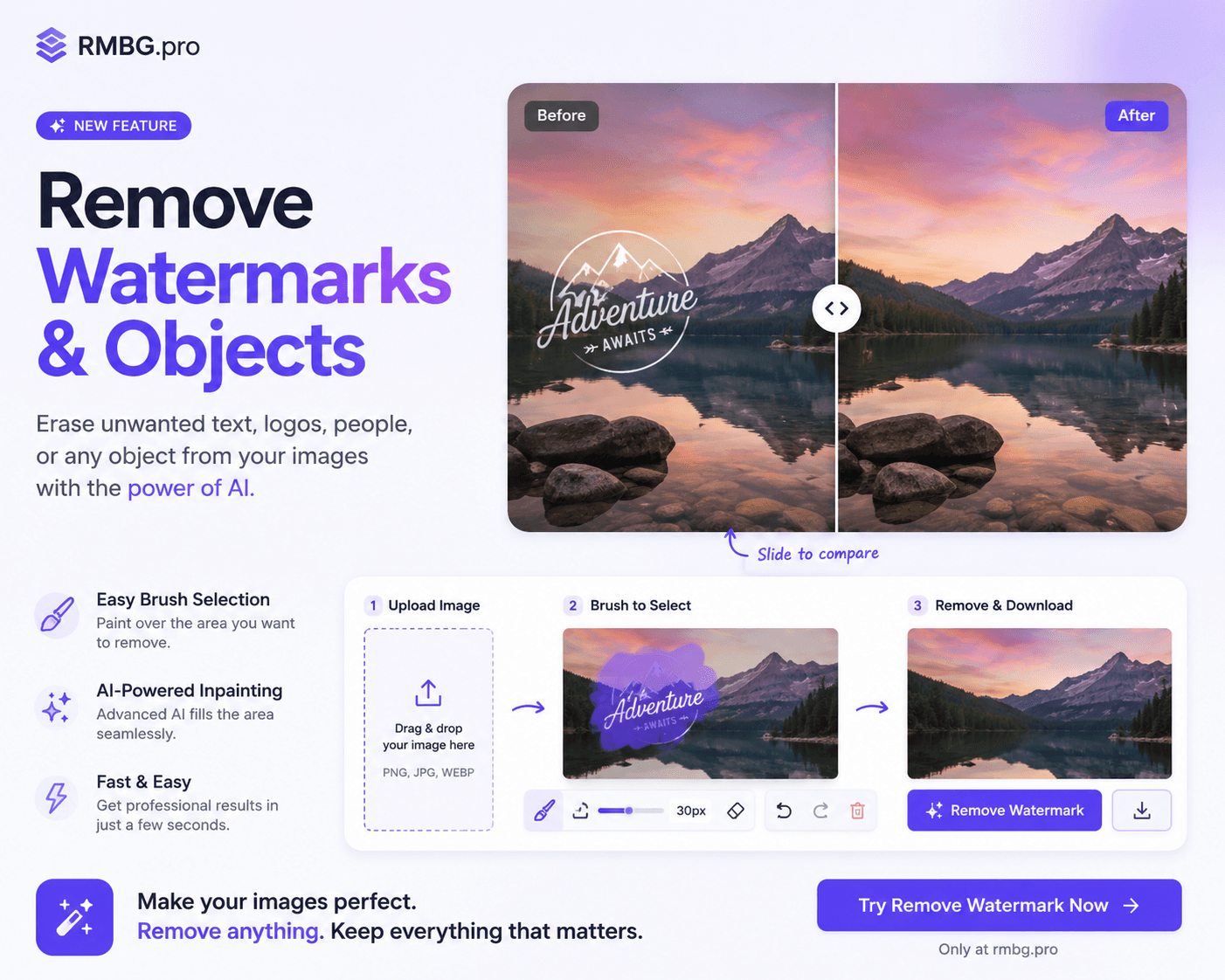
Remove Watermark from Image Online Free
The complete guide to removing watermarks from images online for free using AI. Learn multiple methods, compare tools, and get professional-quality results in seconds with RMBG.PRO.
Remove Watermarks Free — No Signup Required
Upload your image and let AI remove unwanted watermarks, text, and objects instantly
Why Remove Watermarks from Images?
Watermarks are everywhere. Stock photo sites overlay their logos on preview images. Photographers stamp their names across portfolio samples. E-commerce platforms mark product images to prevent unauthorized use. Content creators add branding to their visual assets. While watermarks serve a legitimate purpose — protecting intellectual property and ensuring proper attribution — there are many legitimate reasons why you might need to remove a watermark from an image.
Perhaps you purchased a stock photo and need the clean, watermark-free version for your project. Maybe you are a designer who received a client's image with a watermark from another platform and need to clean it up. You could be restoring an old family photo that has a date stamp or text overlay. Or you might have created an image yourself but lost the original unmarked file. In all these cases, being able to remove watermarks quickly and effectively is an essential digital skill.
In 2026, AI-powered tools have made watermark removal more accessible than ever before. What used to require hours of meticulous work in Photoshop with the clone stamp and healing brush tools can now be accomplished in seconds with a few clicks. Advanced machine learning models can analyze an image, identify the watermark region, and intelligently reconstruct the underlying pixels with remarkable accuracy. The best part is that many of these tools are available online for free, requiring no software installation and no technical expertise.
RMBG.PRO offers one of the most powerful free watermark removal tools available online. Its AI engine is trained on millions of images and can handle watermarks of various types — text overlays, logo stamps, semi-transparent brand marks, complex patterns, and even objects that obscure parts of an image. The tool works directly in your browser, processes images locally when possible for privacy, and delivers high-quality results in seconds. Whether you are removing a single watermark from a profile picture or batch-processing dozens of product images, RMBG.PRO makes the process effortless.
What Is a Watermark and Why Is It Used?
A watermark is a visible overlay — typically a logo, text, or pattern — applied to an image to identify its owner or protect its copyright. Watermarks can be opaque or semi-transparent, positioned in corners or across the entire image, and range from subtle signatures to bold, intrusive marks that cover significant portions of the picture.
The primary purpose of watermarks is deterrence. By placing an identifiable mark on an image, the owner makes it less attractive for unauthorized use. If someone does use the image without permission, the watermark makes it easier to trace the source and proves ownership. Stock photography websites like Shutterstock, Adobe Stock, and Getty Images use prominent watermarks on preview images to encourage legitimate purchases. Photographers and digital artists often use more subtle watermarks to protect their portfolios while still showcasing their work.
However, watermarks are not limited to copyright protection. Social media platforms sometimes add watermarks to images downloaded from their services. Camera manufacturers can embed metadata watermarks. Timestamps and location markers are a form of watermark. Even meme generators add watermarks to their creations. Understanding the type of watermark you are dealing with is the first step in choosing the right removal method.
There are several common types of watermarks you may encounter. Text watermarks are the simplest — a name, website URL, or copyright notice placed over the image. Logo watermarks use a brand mark or icon, often with some transparency. Pattern watermarks repeat across the entire image, making them harder to remove. Semi-transparent overlays blend into the image content and require sophisticated AI analysis to reconstruct the underlying area. Each type presents different challenges for removal, and the best approach varies depending on the watermark's complexity, position, and the image content beneath it.
Methods to Remove Watermarks from Images Online Free
There are several approaches to removing watermarks, ranging from manual techniques to fully automated AI solutions. Here are the most effective methods available in 2026.
1. AI-Powered Watermark Removal (Recommended)
AI-powered watermark removal is by far the most effective and efficient method available today. Tools like RMBG.PRO's Watermark Remover use deep learning models trained on millions of image-watermark pairs to intelligently identify and remove watermarks while reconstructing the underlying image content.
The AI analyzes the image at the pixel level, identifying the watermark region and distinguishing it from the actual image content. It then generates a prediction of what the image would look like without the watermark, filling in the removed area with contextually appropriate pixels. The result is a clean, natural-looking image that shows no trace of the original watermark.
This method works on all types of watermarks — text, logos, semi-transparent overlays, and complex patterns. It requires no manual selection or editing skills. Simply upload your image to the tool, and the AI handles the rest. For most users, this is the fastest and most reliable way to remove watermarks online for free.
2. Manual Removal Using Clone Stamp and Healing Brush
The traditional method for watermark removal involves using image editing software like Adobe Photoshop, GIMP (free), or Affinity Photo. The clone stamp tool copies pixels from one area of the image and paints them over the watermark. The healing brush tool blends the copied pixels with the surrounding area for a more natural result.
This method gives you complete control over the result but requires significant skill and patience. For simple watermarks on uniform backgrounds — like a logo on a solid color — manual removal can be quick and effective. For complex watermarks on detailed backgrounds — like a text overlay on a landscape photo — manual removal can take hours or even produce unsatisfactory results.
If you choose this route, work on a duplicate layer, use a soft brush with low opacity for gradual blending, and zoom in to 200-400% for precise edits. The content-aware fill feature in modern versions of Photoshop can also help, automatically generating replacement pixels based on the surrounding image content.
3. Cropping the Watermark
The simplest method — and one that requires no special tools — is to crop the image to remove the watermark area. If the watermark is positioned in a corner or along an edge, and the image composition allows for it, cropping can produce a clean result instantly.
Most operating systems and basic photo viewers include cropping tools. On Windows, you can use the Photos app or Paint. On macOS, the Preview app has a basic cropping tool. Online tools like RMBG.PRO's AI tools also include cropping functionality alongside more advanced features.
The downside of cropping is that you lose part of the image. If the watermark is in the center or the image composition does not allow for cropping without losing important content, this method will not work. However, for watermarks placed in the bottom-right or top-left corners of images with generous margins, cropping is often the fastest solution.
4. Using Blur or Pixelation
Another approach is to blur or pixelate the watermark area rather than completely removing it. This is not true removal, but it can make the watermark unreadable while preserving the overall image. Some image editors have a blur tool that you can apply selectively to the watermark region.
This method is most useful when you need to obscure sensitive information like a phone number, email address, or license plate rather than a copyright watermark. The Gaussian blur filter or mosaic pixelation effect can be applied to a selected area to make the content unrecognizable.
However, blurring is not suitable for removing copyright watermarks, as it leaves visible artifacts that are often more noticeable than the original watermark. For clean, professional results, AI-powered removal is always the better choice.
5. Content-Aware Fill
Content-aware fill is a feature available in Adobe Photoshop and some other advanced editors. You select the watermark area, and the software automatically fills it with pixels that match the surrounding image content. The algorithm analyzes the image texture, lighting, and patterns to generate a seamless replacement.
This method works well for watermarks on textured or patterned backgrounds where the clone stamp would create noticeable repetition. It is less effective on images with complex structures like faces, text, or distinct objects, where the content-aware fill may produce strange artifacts or "hallucinated" details.
Content-aware fill is a powerful tool, but it requires Photoshop or similar paid software. For users who do not have access to these tools, AI-powered online solutions offer comparable or better results without the cost or complexity.
6. Background Removal as a Watermark Removal Technique
An innovative approach to watermark removal involves using background removal tools. If the watermark is on a uniform or simple background, you can remove the entire background — including the watermark — and then place the subject on a new clean background. This technique is particularly effective for product photos with watermarked backgrounds.
RMBG.PRO's background removal tool excels at this. Upload your watermarked image, let AI identify and isolate the main subject, remove the background (along with any watermarks on it), and then place the subject on a clean white, transparent, or custom background. The result is a watermark-free image that looks professionally edited.
This method works best when the watermark is on the background rather than overlapping the main subject. For product photography, portrait photos, and images with clear subject-background separation, it is one of the most effective watermark removal techniques available.
How to Remove Watermarks Using RMBG.PRO (Step by Step)
Follow these simple steps to remove watermarks from your images completely free using RMBG.PRO's AI-powered tools. The entire process takes less than a minute.
Go to the Watermark Remover Tool
Navigate to the RMBG.PRO Watermark Remover page. The tool loads directly in your browser — no registration, no software download, no payment required. The interface is clean and intuitive, with a single upload area in the center of the screen.
Upload Your Image
Click the upload button or drag and drop your image onto the upload area. RMBG.PRO supports all major image formats including JPEG, PNG, WebP, AVIF, GIF, BMP, and TIFF. Images are processed securely — your files are not stored on our servers longer than necessary for processing. Maximum file size depends on your plan, but the free tier handles most standard images.
Select the Watermark Area
Use the brush tool to highlight the watermark you want to remove. You can adjust the brush size for precise selection — use a smaller brush for detailed areas and a larger brush for bigger watermarks. For watermarks with clear boundaries, the smart selection tool can automatically detect the edges. Take your time with the selection, as a clean selection leads to better results.
Let AI Process the Image
Click the "Remove" or "Process" button. The AI engine analyzes the selected area and surrounding image context, then reconstructs the pixels beneath the watermark. Processing typically takes 3-10 seconds depending on image size and watermark complexity. The AI works best on images with clear, high-resolution content surrounding the watermark.
Download Your Clean Image
Once processing is complete, preview the result. If you are satisfied, click download to save the cleaned image to your device. You can choose between PNG (lossless, best quality) or JPEG (smaller file size) format. If the result needs adjustment, you can refine the selection and try again. The tool also offers additional editing options like background removal and resizing.
Tips for Best Watermark Removal Results
Use High-Resolution Images
Higher resolution images give the AI more pixel data to work with, resulting in better reconstruction of the area beneath the watermark. If you have a low-resolution image, consider using an AI upscaler first or search for a higher-quality version. Images smaller than 800x600 pixels may show visible artifacts after watermark removal. For best results, work with images that are at least 1920x1080 pixels or 2-5 MB in file size.
Make Precise Selections
The accuracy of your watermark selection directly impacts the quality of the result. Take time to select the watermark precisely, avoiding unnecessary inclusion of clean image areas. Use a smaller brush size for edges and corners. If the watermark has fine details like thin text or intricate logo elements, zoom in to 200% while making your selection. A clean, tight selection gives the AI the best chance of producing a natural-looking result.
Remove Complex Watermarks in Stages
For watermarks that cover large areas or contain multiple elements, consider removing them in stages. Select and remove one section at a time, starting with the parts on simpler backgrounds and working toward more complex areas. This approach gives the AI less work to do per pass and often produces better results than trying to remove a large, complex watermark all at once. After each stage, review the result and move on to the next section only when you are satisfied.
Combine with Background Removal
If the watermark is on the background rather than on the main subject, use RMBG.PRO's background removal tool first to separate the subject, then remove the watermark from the isolated background. Alternatively, you can remove the entire background and place your subject on a clean new background — effectively removing any background watermarks entirely. This combined approach is particularly effective for product photography and portrait images where the subject is clearly separated from the background.
Check for Artifacts and Touch Up
After AI processing, zoom in to 100-200% and inspect the watermark area carefully. Look for any remaining traces of the watermark, color inconsistencies, or texture mismatches. Small artifacts can often be fixed by running the removal process again on the specific problem area. For stubborn artifacts, use the AI touch-up tools to refine specific spots. In most cases, a single pass produces clean results, but complex images may benefit from a second pass on select areas.
RMBG.PRO Watermark Remover vs Other Tools
There are many watermark removal tools available online. Here is how RMBG.PRO compares to the most popular alternatives in 2026.
RMBG.PRO vs Adobe Photoshop
Adobe Photoshop is the industry standard for image editing and offers powerful watermark removal through its clone stamp, healing brush, and content-aware fill tools. However, Photoshop requires a paid subscription ($22.99/month for the Photography plan), a significant learning curve, and installation on your computer. RMBG.PRO is completely free, works in your browser, and requires no technical skills. For simple to moderately complex watermark removal, RMBG.PRO's AI achieves results comparable to Photoshop in a fraction of the time. For extremely complex watermarks on intricate backgrounds, Photoshop's manual tools may offer more control, but the time investment is substantially higher.
RMBG.PRO vs Other Online Watermark Removers
Most free online watermark removers have significant limitations — daily usage caps, maximum file size restrictions, visible compression artifacts, or watermarks on the output image itself. Some require account registration or limit you to a handful of free removals before demanding payment. RMBG.PRO stands out by offering genuinely free watermark removal with no hidden catches. The free tier provides generous usage limits, supports high-resolution images, and delivers clean, uncompressed results. The AI model used by RMBG.PRO is continuously trained on diverse datasets, making it more effective across different image types and watermark styles than many competing tools.
RMBG.PRO vs GIMP (GNU Image Manipulation Program)
GIMP is a free, open-source image editor that can remove watermarks using the clone stamp and healing brush tools, similar to Photoshop. While GIMP is free and powerful, it has a steep learning curve and requires manual editing skills to achieve good results. Removing a single watermark can take 10-30 minutes of careful work in GIMP, compared to 5-10 seconds with RMBG.PRO's AI. For users who are not experienced with image editors, RMBG.PRO is the clear winner in terms of accessibility and speed. GIMP remains a good option for users who need complete control and are willing to invest time in learning the software.
Legal and Ethical Considerations
Before removing watermarks from any image, it is important to understand the legal and ethical implications. Watermarks are used to protect copyright and intellectual property. Removing a watermark from an image you do not own the rights to may violate copyright law in your jurisdiction.
You should only remove watermarks from images in the following situations: you own the original image and added the watermark yourself; you have purchased a license for the image and the watermark-free version was not provided; you have explicit permission from the copyright holder to remove the watermark; the image is in the public domain or licensed under Creative Commons with permission for modification; or you are removing metadata watermarks from your own personal photos.
Removing watermarks from copyrighted images without permission and using those images for commercial purposes can result in legal liability, including financial damages. Stock photo agencies and individual photographers actively monitor for unauthorized use of their content. Always respect intellectual property rights and use watermark removal tools responsibly and ethically.
RMBG.PRO provides watermark removal tools for legitimate use cases and does not condone copyright infringement. We encourage all users to respect the rights of content creators and to use our tools only on images they have the right to modify. When in doubt, contact the image owner and request permission or a watermark-free version of the image.
Frequently Asked Questions
Is it really free to remove watermarks with RMBG.PRO?
Yes. RMBG.PRO offers free watermark removal with no hidden charges. The free tier allows you to remove watermarks from images without paying anything. There is no credit card required and no registration needed to get started. If you need higher processing volumes or larger file sizes, premium plans are available but the free option is genuinely free and functional.
Do I need to create an account to remove watermarks?
No account is required for basic watermark removal. You can upload an image, remove the watermark, and download the result without signing up. Creating a free account unlocks additional benefits like higher resolution downloads, processing history, and access to premium AI tools in the AI tools section.
What image formats are supported?
RMBG.PRO supports JPEG, PNG, WebP, AVIF, GIF, BMP, TIFF, and HEIC formats. You can upload images up to 25 MB on the free plan. The output is available in PNG and JPEG formats. PNG is recommended for images with text or sharp edges, while JPEG is suitable for photographs where file size matters more than absolute quality.
How long does it take to remove a watermark?
Most watermarks are removed in 3-10 seconds. Processing time depends on the image resolution, the size of the watermark area, and the complexity of the surrounding image content. Simple text watermarks on uniform backgrounds process fastest, while complex logo watermarks on detailed photographic backgrounds may take slightly longer. The AI processes images on high-performance servers, so you never have to wait more than a few seconds.
Can I remove watermarks from videos?
Currently, RMBG.PRO focuses on image watermark removal. For video watermark removal, specialized video editing software is required. However, you can use RMBG.PRO to remove watermarks from individual video frames (screenshots) and then composite the cleaned frames back into your video workflow. RMBG.PRO is also exploring AI video editing capabilities for future release.
Are my uploaded images private and secure?
Yes. RMBG.PRO takes privacy seriously. Uploaded images are processed securely using encryption in transit. Images are automatically deleted from our servers after processing — we do not store your uploaded images permanently. We never use your uploaded images for AI training or any other purpose without your explicit consent. For maximum privacy, you can create an account and manage your processing history.
What if the AI does not remove the watermark perfectly?
If the result is not perfect on the first attempt, try these troubleshooting steps: make a more precise selection of the watermark area; use a higher resolution version of the image; split complex watermarks into smaller sections and remove them one at a time; or combine watermark removal with background removal for better results on certain image types. The AI improves over time as it is trained on more data, so results will continue to get better.
Remove Watermarks from Your Images Free Today
Removing watermarks from images has never been easier. With RMBG.PRO's AI-powered tools, you can clean your images in seconds, completely free, right in your browser. No software downloads, no registration required, no hidden costs — just fast, professional-quality results.
Try it now and see the difference AI makes for yourself.
Free • No signup • AI-powered • Instant results