
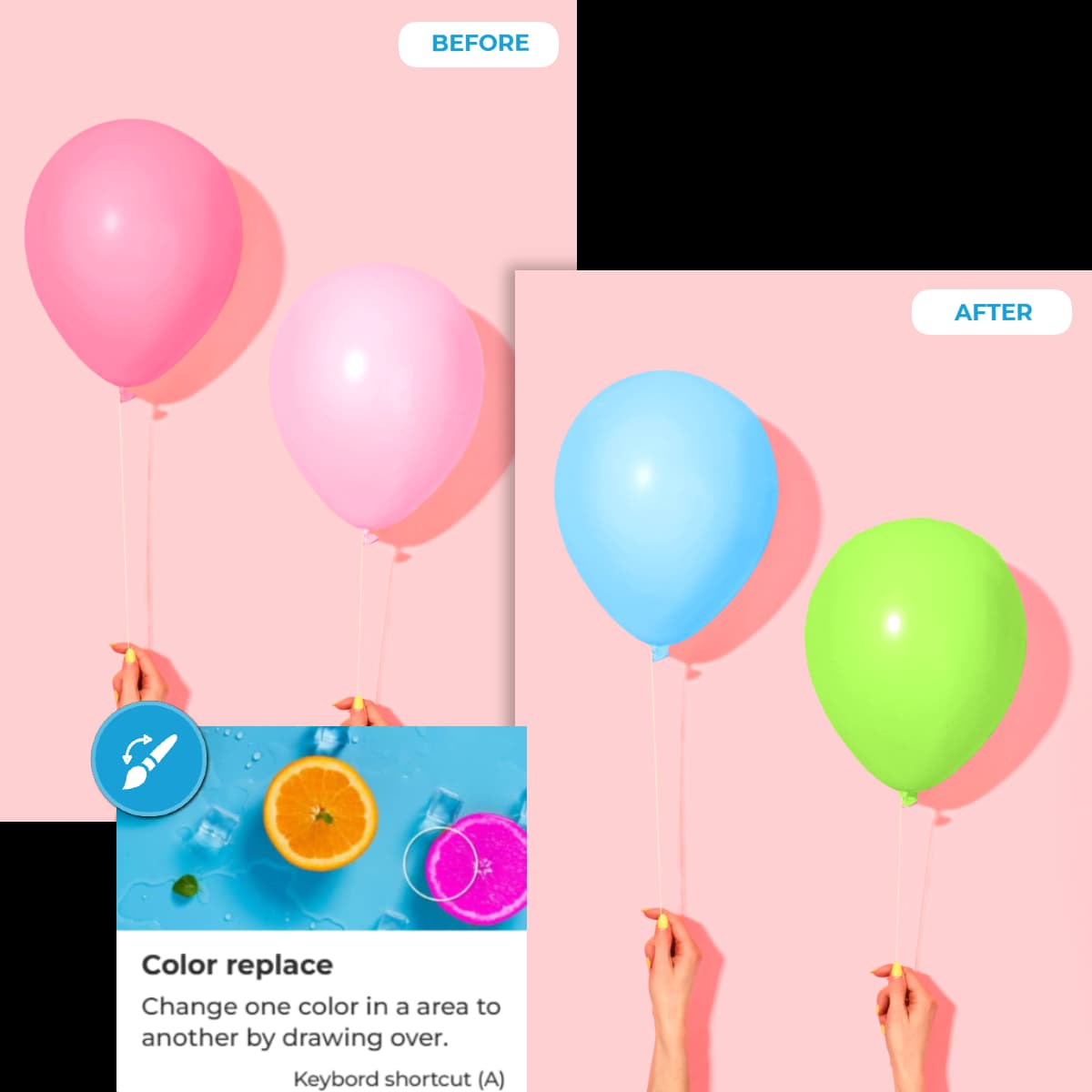
How to Replace Image Backgrounds with Color for a Professional Look
A crisp, solid-color background can transform a mediocre product photo into a professional, conversion-driving image. Here is exactly how to replace image background with color using AI — no Photoshop required.
High-quality imagery is the single most important visual factor in e-commerce conversion rates. A cluttered background distracts the buyer, dilutes your brand, and screams “amateur.” A clean, deliberate background color does the opposite: it focuses attention on the product, communicates professionalism, and builds trust instantly.
Whether you sell on Amazon, eBay, Etsy, or your own Shopify store, the ability to replace image background with color is an essential skill. Marketplace algorithms reward clean imagery with higher placement, and customers reward it with higher click-through and conversion rates.
In this guide, you'll learn exactly how to change background color onlinein seconds using a free AI-powered tool — no complicated software, no steep learning curve, and no recurring subscription fees.
Why Background Color Matters — The Psychology & Platform Requirements
Marketplace Requirements
Amazon, eBay, and Google Shopping all mandate pure white backgrounds (#FFFFFF) for primary product images. A non-compliant image can be suppressed or rejected entirely. White background product photography is not optional for serious sellers — it is a requirement.
Brand Cohesion & Aesthetic
Beyond marketplace compliance, background color is a powerful branding tool. A consistent color palette across your product catalog — soft pastels, brand-specific hues, or sleek neutral greys — creates a cohesive grid that looks curated and professional on Instagram, your website, and print materials.
Visual Psychology
Colors trigger specific emotional responses. White conveys purity and simplicity. Black signals luxury and sophistication. Pastels feel approachable and friendly. Bright brand colors grab attention. Choosing the right background color reinforces your product's positioning without saying a word.
Quick Tip — Choosing Your Background Color
For product photography, use a color that contrasts with your subject. Dark products pop against light backgrounds; light products stand out on dark or vibrant colors. Avoid colors that clash with the product or cause color bleeding (reflected tint on the subject edges).
Step-by-Step Guide: How to Replace Image Background with Color Instantly
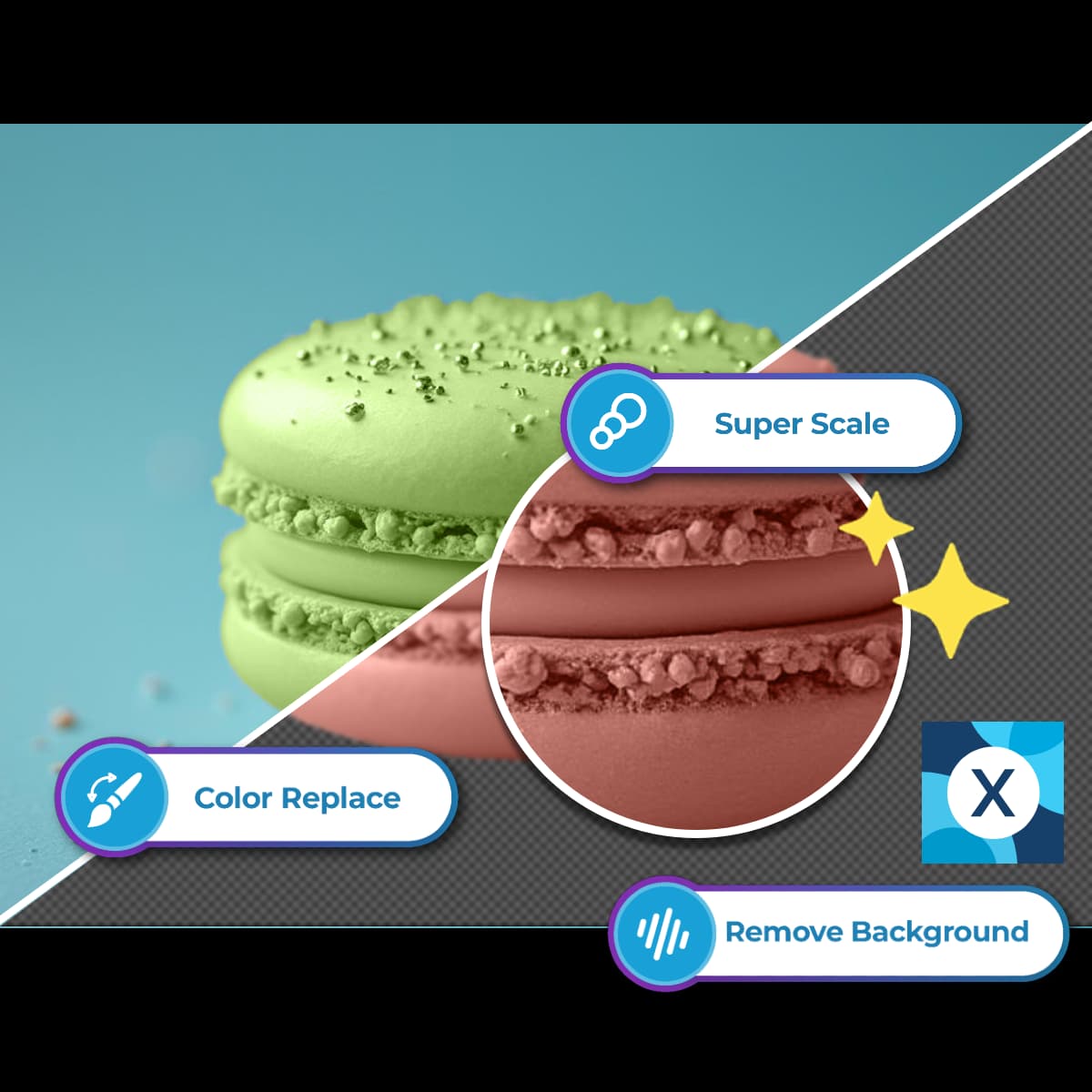
Step 1: The Isolation — Remove the Original Background
Before you can add a new color, you need a clean cutout of your subject. This is where AI makes the process dramatically faster than manual methods. Our automated background removal engine detects the edges of your subject with pixel-level precision and strips away the original background in seconds.
Simply upload your image to the free AI background editor, and the tool instantly isolates your subject on a transparent canvas. You don't need to trace paths, adjust tolerance sliders, or paint masks — the AI handles all of that automatically.
Step 2: Choosing the Right Color Palette
Once the background is removed, you have a transparent PNG with your subject perfectly isolated. Now comes the creative part — selecting the replacement color.
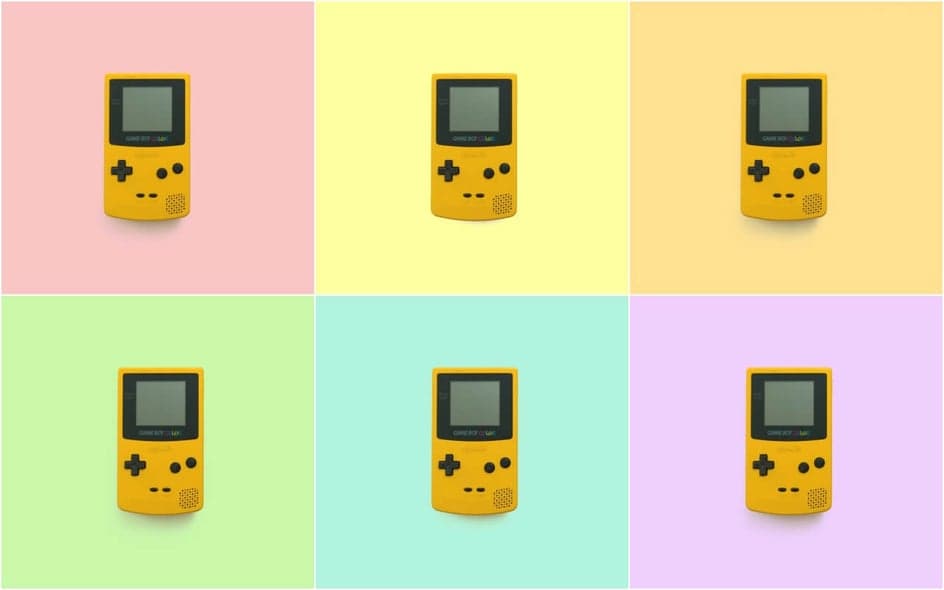
- Pure white (#FFFFFF): Best for Amazon, eBay, and Google Shopping listings.
- Soft grey (#F0F0F0): Creates a subtle studio look that feels premium.
- Brand colors: Use your exact brand hex code for social media and website consistency.
- Pastels: Ideal for lifestyle, beauty, and fashion products on Instagram.
- Black (#000000): Adds drama and luxury feel for high-end products.
Quick Tip — Using Hex Codes
For precise brand matching, use a hex color picker to copy your brand's exact color code. Paste it directly into the color input field on the tool for a perfect match every time.
Step 3: Exporting and Formatting
After applying your chosen background color, download the final image in the format that suits your use case:
- PNG: Best for preserving full quality and keeping a transparent version as backup.
- JPEG: Smaller file size, faster page loads — ideal for e-commerce listings and web use.
- WebP: Modern format with excellent compression and quality — recommended for websites.
Always keep a transparent PNG copy of your cutout so you can change the background color again later without re-processing the subject isolation.
Why Do It Manually When AI Does It in Seconds?
Traditional methods of replacing backgrounds require Photoshop, layer masks, pen tools, and a significant time investment — several minutes per image for experienced users, and much longer for beginners. For a catalog of 50 products, that adds up to hours of tedious work.
With RMBG.PRO's free AI background editor, you can replace image background with color in under 10 seconds. Upload your image, let the AI remove the background automatically, and then pick a solid color from the preset palette or enter a custom hex code. The result is a studio-quality image that is ready for listing, sharing, or printing.
No signup, no software download, no subscription. It works entirely in your browser and is free to use.
Frequently Asked Questions
Can I change the background color after removing the original?
Yes. Once the AI removes the original background and produces a transparent PNG, you can apply any solid color, gradient, or even a new image as the background. You can change the color as many times as you like from the transparent version without re-processing the subject.
What is the best color for Amazon product images?
Amazon requires pure white (#FFFFFF) backgrounds for all primary product images. Non-white backgrounds may result in image suppression or listing disapproval. Use our tool to quickly replace image background with color to compliant white.
Will the AI handle complex subjects like hair or fur?
Our AI is trained on millions of images and handles complex edges — hair, fur, transparent objects, and intricate shapes — with high accuracy. Fine details are preserved, and the transition between the subject and the new background color is clean and natural.
Can I use custom brand colors as the background?
Absolutely. Paste your brand's exact hex code into the color input, or use the visual color picker to select any shade. This is perfect for maintaining brand consistency across social media graphics, website banners, and marketing materials.
Is there a limit on image resolution?
The tool accepts high-resolution images and maintains full quality throughout the process. Your downloaded image retains its original dimensions and resolution, so it is suitable for both web use and print applications.
Replace Your Image Background with Color Free Today
Stop struggling with complex software. With RMBG.PRO, you can replace image background with color in seconds — right in your browser, completely free, with no signup required.
Upload your image, remove the background instantly, and pick the perfect color.
Free • No signup • AI-powered • Instant results