
Complete Guide: How to Use the RMBG.PRO MCP Server
Published on February 9, 2026 • 8 min read
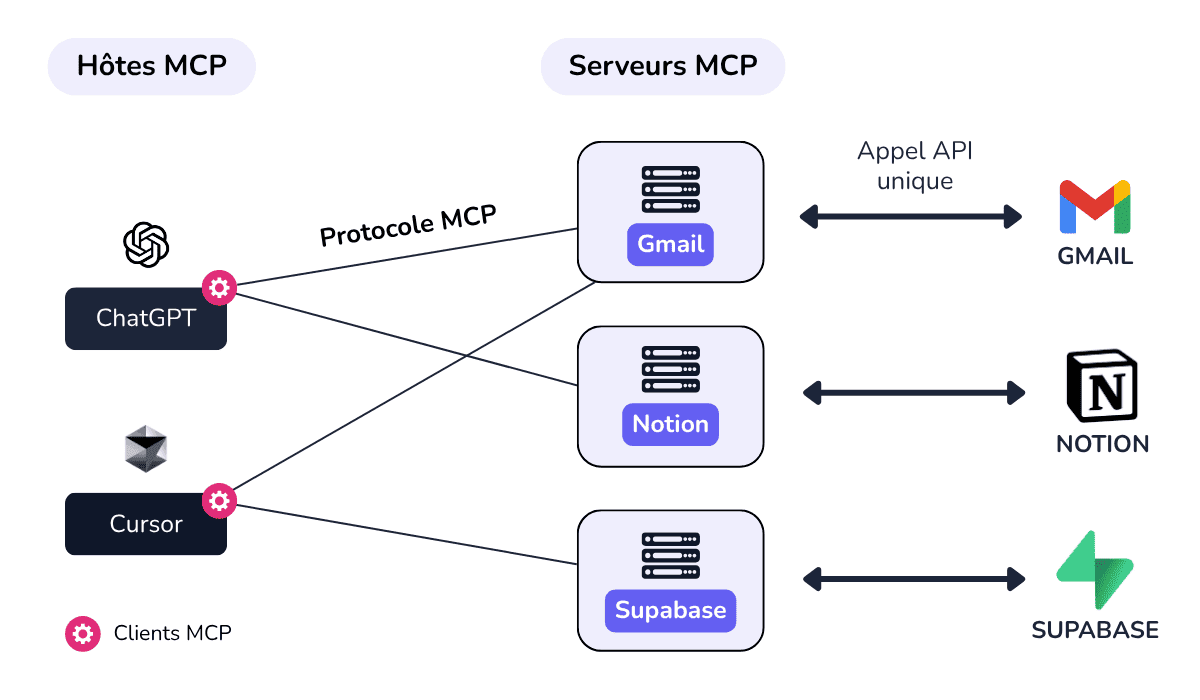
Following our introduction to the Model Context Protocol (MCP), we are excited to announce the official RMBG.PRO MCP Server. This integration allows AI agents—like Claude Desktop—to perform professional background removal, check your credit balance, and manage your history directly within your chat interface.
This guide provides step-by-step instructions to set up the server on your local machine and connect it to your favorite AI tools.
Why Use the MCP Server?
Traditional APIs require manual implementation or specialized plugins. With the RMBG.PRO MCP server, you give AI models "hands" to interact with our service. You can simply say:
"Claude, please remove the background from this product image URL and let me know how many credits I have left."
Prerequisites
- Node.js: Installed on your machine (v18+ recommended).
- Claude Desktop: Or any other MCP-compatible client.
- RMBG.PRO API Key: Available in your user dashboard.
Step 1: Configuration for Claude Desktop
To enable the tools, you need to tell Claude where the server is located. Open your Claude Desktop configuration file:
Add the following configuration to the mcpServers section:
{
  "mcpServers": {
    "rmbg-pro": {
      "command": "node",
      "args": [
        "https://rmbg.pro/mcp-server/"
      ],
      "env": {
        "DATABASE_URL": "YOUR_DATABASE_URL",
        "MCP_MODE": "stdio",
        "NODE_ENV": "development"
      }
    }
  }
}
*Note: Replace "YOUR_DATABASE_URL" with your actual connection string.
Step 2: Available AI Tools
Once connected, your AI assistant will have access to three powerful tools:
🖼️ Remove Background
Processes any image URL or base64 string instantly.
💰 Check Credits
Real-time update on your remaining account balance.
📜 View History
Lists your most recent processing tasks and logs.
Example Commands
Try these prompts to test your integration:
- "Remove the background from https://example.com/photo.jpg"
- "What is my current RMBG.PRO credit balance?"
- "Show me a list of my last 5 background removal transactions."
Troubleshooting
If the tools don't appear in your AI client:
- Ensure Node.js is accessible from your global path.
- Verify the file path to
app/mcp-server/route.tsis correct. - Check the Claude Desktop logs for any environment variable errors.
Conclusion
The RMBG.PRO MCP server is designed to remove friction from your creative workflow. By bringing pro-level AI background removal directly into your conversational tools, we are helping you work faster and smarter.