Online PDF Compressor
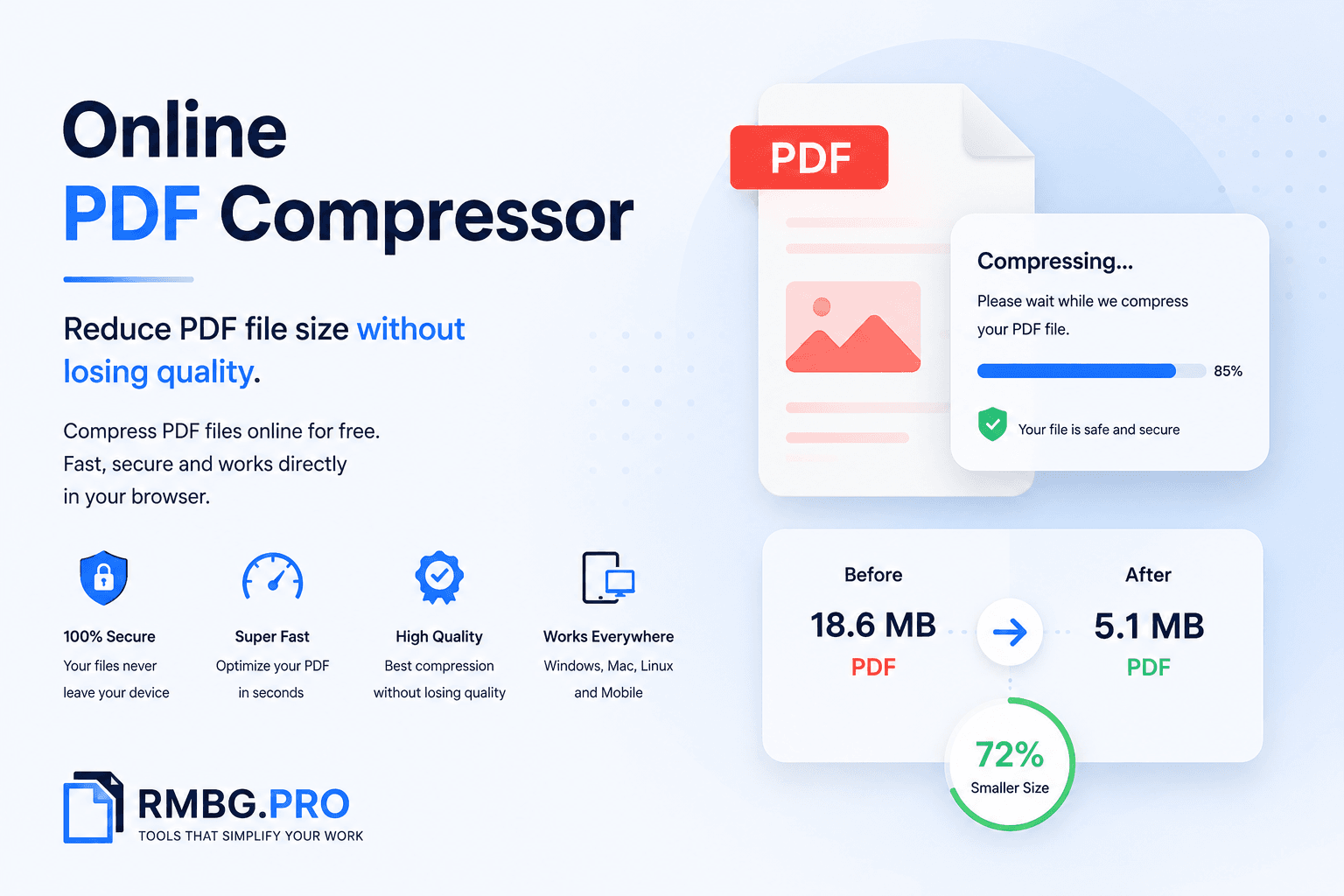
Compress PDFs without quality loss. Reduce file size fast for email, uploads, and sharing. Free, secure, and entirely in your browser.
Published on July 21, 2026
The PDF format has become the universal standard for contracts, reports, presentations, and academic papers. But that universality comes at a cost: file size. A twenty-page report filled with images can easily exceed 20 MB, creating frustration when you need to email it, upload it to a portal, or share it through a messaging app.
An online PDF compressor solves this problem in seconds. No heavy software to install. You reduce PDF size directly in your browser, with no account, no waiting, and no data leaving your device.
This article explains why PDFs become oversized, how compression works, and how to use the RMBG.PRO PDF Compressor to get smaller files without sacrificing readability.
Why people search for an online PDF compressor
The need for an online PDF compressor usually appears at the worst possible moment: right before you send a client proposal, upload a university assignment, submit a permit file, or share a legal bundle that has already gone through too many revisions. At that point, the question is not theoretical. You simply need to reduce PDF size quickly without breaking the document or creating more work for yourself.
That urgency is shared by a surprisingly wide audience. Beginners want a frictionless tool that does not require learning desktop software. Business teams need smaller reports, presentations, and onboarding documents. Students and teachers handle scanned handouts, assignments, and feedback files every week. Architects send drawing sets and image-heavy proposals. Lawyers move contracts, case files, and exhibits through inboxes and portals. Designers share portfolios and proofs. Developers care about predictable file handling, upload reliability, and privacy-conscious workflows.
In other words, compressing PDFs is not just about storage. It is about deliverability, speed, collaboration, and user experience. A file that is small enough to email, fast enough to upload, and clear enough to read creates momentum. A file that fails size checks slows every step after it.
Why PDF size matters in real workflows
File size affects nearly every modern document workflow. Smaller PDFs upload faster on unstable networks, open more smoothly on phones, and create fewer issues inside procurement systems, learning platforms, HR portals, CRMs, and support desks. When a recipient can open a document immediately, feedback cycles shorten and fewer conversations stall on technical details.
There is also a hard sharing reality behind the search intent. Google says personal Gmail attachments are limited to 25 MB, and larger files are converted into Drive links. Microsoft explains that Outlook commonly works around a 20 MB size limit for internet email accounts and notes that business environments can be even stricter. Adobe documents that PDF optimization works through image compression, font management, object cleanup, and metadata removal. These official references reinforce the same message: document size limits are normal, and compression is the standard fix.
What makes PDFs so large in the first place
Most oversized PDFs are not oversized because of text. They are large because of high-resolution images, scans, embedded fonts, repeated objects, page thumbnails, hidden metadata, and export settings that were designed for print rather than fast digital sharing. A scanned packet can store each page like a full image. A design deck may embed several large visuals. A merged brief can accumulate unnecessary assets from multiple source files.
This is why compression results vary so much by file type. Text-first business reports often compress well with almost no visible change. Scanned forms and classroom packets can shrink dramatically. Image-heavy layouts, architecture sheets, and polished portfolios need more caution. Good compression is not about forcing every file into the same setting. It is about matching the setting to the file's real purpose.
- Scanned PDFs usually offer the biggest size reductions because page images can be resampled and recompressed.
- Mixed business documents often work best with balanced compression because text remains crisp while images become lighter.
- Design, legal, and technical files benefit from lighter settings first because small quality changes may matter more.
How to choose the right compression level
The smartest way to use an online PDF compressor is to start with the destination, not the slider. If the file is meant for email, job portals, or client review, balanced compression is often the right first move. If the file may be printed or contains diagrams, signatures, detailed plans, or visual proofs, start with light compression and only go stronger if the size is still too large.
Aggressive compression has a place, especially when a document must clear a strict upload limit. But the goal is not to win a file-size contest. It is to make the document easy to send while preserving what the recipient actually needs to see. A readable 6 MB PDF is better than a blurry 2 MB PDF that causes questions, rework, or mistrust.
- Light compression: best for portfolios, presentations, architecture summaries, and files that may be printed.
- Balanced compression: best for proposals, reports, handouts, invoices, contracts, and everyday collaboration.
- Maximum compression: best for emergency size limits, fast delivery, and documents where image fidelity matters less than portability.
A practical step-by-step compression workflow
A reliable PDF workflow is usually simpler than people expect. First, identify the target size based on where the file is going. Second, run the document through the PDF Compressor and review the result immediately. Third, zoom into small text, scans, signatures, tables, and diagrams to confirm readability. Fourth, remove pages you do not need or clean up the document in the PDF Editor. Fifth, if the file is still too large, split appendices or chapters instead of forcing extreme compression onto the entire document.
This sequence works across audiences because it respects real priorities. Students can upload assignments faster. Teachers can distribute reading packs more easily. Architects can send lighter visual summaries before forwarding high-resolution source files on request. Lawyers can reduce friction when sending long case materials. Designers can keep proofs polished without huge attachments. Developers can standardize document handling before files enter internal systems. Freelancers and business teams can simply spend less time troubleshooting failed uploads.
The important mindset shift is this: compression is often the first optimization, not the only one. The cleanest result often comes from combining compression with page cleanup, splitting, or conversion rather than relying on maximum compression alone.
Privacy and quality: the two issues users care about most
Most users are willing to compress a document if they trust the process. That trust usually depends on two things: privacy and quality. Business users want sensitive reports to remain controlled. Legal teams need document integrity. Students and teachers want a simple tool on any device. Designers need compression that respects visual presentation. Developers want predictable behavior. This is why browser-based processing is so attractive. When the work happens locally, the file can stay on the device instead of being uploaded to a remote server.
Quality matters just as much. Compression should make a file lighter, not unusable. If signatures become fuzzy, if clauses are harder to read, if plans lose detail, or if image-heavy pages become visibly degraded, then the reduction went too far. Good tools support quick iteration: compress, review, and keep the smallest version that still looks right.
- Avoid maximum compression for signed contracts that may need printing or archiving.
- Start lightly with architecture sheets, design proofs, and evidence files where fine detail matters.
- Use stronger compression for temporary sharing copies when the priority is speed, not long-term reproduction quality.
Compression works best inside a complete PDF toolkit
Compression is powerful on its own, but it becomes far more useful when it sits inside a broader workflow. If several source documents need to become one deliverable, merge first and then compress. If one large bundle includes appendices that different stakeholders do not need, split the document and send only the relevant sections. If a review process depends on image extracts, convert selected pages through PDF to JPG. If your source material begins as camera photos or scans, convert through JPG to PDF and compress the final output for cleaner sharing.
This approach is especially helpful for multi-role teams. An assistant can assemble material, a specialist can review content, and a manager can approve a final version that is already clean and lightweight. Compression then becomes a repeatable finishing step rather than an emergency fix at the end of the process.
Who benefits from PDF compression?
Students and teachers
Keep assignments, lecture notes, scanned worksheets, and feedback files easier to upload and easier to access on mobile devices.
Businesses and freelancers
Compress proposals, onboarding packs, invoices, contracts, pitch decks, and signed deliverables before sending them to clients or teams.
Architects, lawyers, and designers
Start with lighter settings because your documents often contain technical detail, image-sensitive layouts, or review-critical clarity requirements.
Developers and technical teams
Standardize PDF size before files enter support systems, admin portals, workflows, and internal handoff processes to reduce operational friction.
Frequently Asked Questions
How does an online PDF compressor reduce file size?▾
An online PDF compressor reduces file size by optimizing images, removing redundant metadata, simplifying embedded objects, and balancing quality with smaller output size.
Can I compress PDF files without losing quality?▾
You can usually reduce PDF size without noticeable quality loss by using light or balanced compression. Image-heavy and scanned files may show some visual softening under aggressive compression.
Why are scanned PDFs so large?▾
Scanned PDFs are often large because each page is stored as a high-resolution image. Lowering image resolution and recompressing images usually delivers the biggest size reduction.
What size should a PDF be for email?▾
For reliable email delivery, keeping a PDF comfortably below common provider limits is best. Many users target under 10 MB for easier sharing across personal and business inboxes.
When should I split a PDF instead of compressing it?▾
Split a PDF when compression alone does not reach the required size, or when recipients only need selected pages, chapters, or sections of a document.
Is browser-based PDF compression more private?▾
Browser-based compression can improve privacy because processing happens on your device instead of requiring a file upload to a remote server.
Related Tools
RMBG.PRO offers a growing suite of free browser-based PDF tools. Explore more:
PDF Compressor
Reduce PDF size directly in your browser.
PDF Editor
Clean up, reorganize, and refine pages before or after compression.
PDF Merger
Combine multiple files into one client-ready or submission-ready PDF.
PDF Splitter
Break large documents into annexes, chapters, or selected page ranges.
PDF to JPG
Turn selected pages into images for review, slides, or markup.
JPG to PDF
Build a clean PDF from scans, screenshots, or photographed pages.
References
- Gmail attachment limits— Google explains the 25 MB limit for personal Gmail accounts and when attachments switch to Drive links.
- Outlook attachment guidance— Microsoft covers common size limits and why compression is a practical fix for large attachments.
- Adobe PDF optimizer settings— Adobe documents how images, fonts, transparency, and cleanup options affect PDF size.
Ready to compress your PDF?
Reduce PDF size in seconds. Free, secure, no account required.
Compress a PDFSimilar articles
View all
Run rembg-style background removal without installing Python. Compare the online tool, the REST API and self-hosting — with real processing-time trade-offs.
Détourez vos images dans le navigateur : pas de Python, pas de logiciel à installer. Comparaison entre outil en ligne, API REST et rembg en local.
أزل خلفية صورك من المتصفح مباشرة: بدون Python وبدون تثبيت أي برنامج. مقارنة بين الأداة أونلاين وواجهة API والأداة المحلية rembg.