Image to Layers AI
Convert any image into editable transparent layers directly in your browser. Export PNG layers or Photoshop PSD files for free using AI-powered image segmentation.
Published on July 21, 2026
Designers, photographers, and content creators spend hours every week extracting objects from flat images. Whether the goal is to replace a background in Photoshop, isolate a product for an e-commerce listing, or composite multiple elements into a marketing banner, the starting point is always the same: separating a single image into independent layers.
Manual extraction with the pen tool or layer masks is precise but painfully slow. And when the image contains complex edges—hair, foliage, translucent objects—even skilled retouchers need significant time to produce clean results.
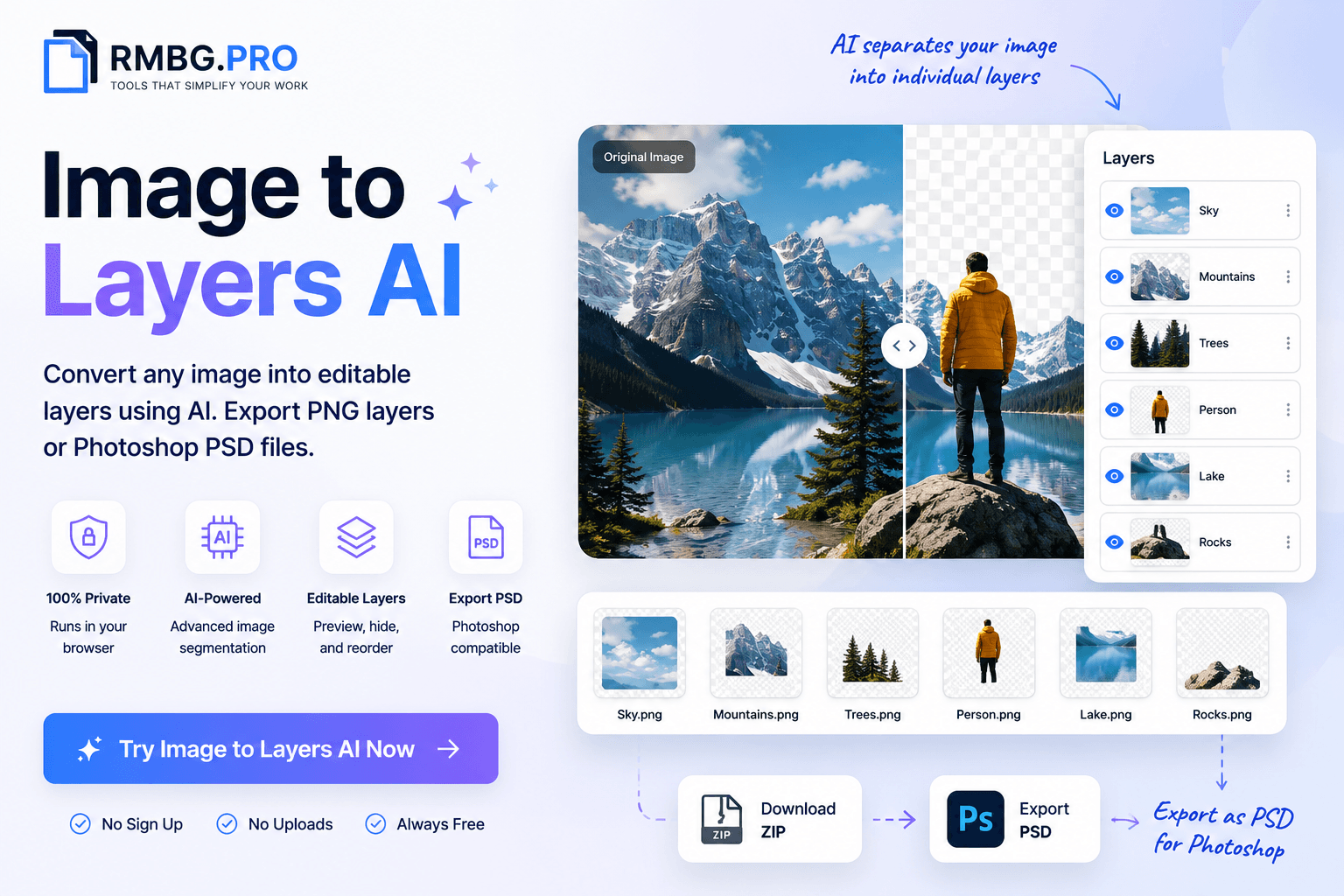
Image to Layers AI automates this entire process. Using AI-powered segmentation, it analyzes an image, detects every distinct region, and generates transparent PNG layers for each one. The result is a set of ready-to-use assets that can be exported as individual PNGs, a ZIP archive, or a Photoshop-compatible PSD file—all processed locally in your browser.
What Is Image to Layers?
Image to Layers is an AI tool that takes a single photograph or illustration and breaks it down into separate transparent layers. Each layer contains one category of objects detected by the AI—for example, a person, a tree, the sky, a car, or the background.
Think of it as the opposite of flattening. Instead of merging everything into one flat image, the tool un-flattens it, giving you back the individual elements that make up the scene. Each layer has full transparency around its edges, so you can move, resize, recolor, or replace any element independently.
The segmentation is powered by two production-ready AI engines that run entirely in the browser: Google MediaPipe Image Segmenter and TensorFlow.js DeepLab. Future versions will add SAM2 and the RMBG AI cloud engine for even more precise results.
Why Use Image to Layers?
The benefits go beyond saving a few minutes of manual work. Here is what changes when you can automatically decompose any image into layers:
Faster Editing
Instead of spending 30 minutes tracing an object with the pen tool, you get a clean layer in seconds. That time adds up across dozens of images per week.
Non-Destructive Workflow
Each layer is independent. You can adjust colors, apply filters, or replace elements without ever touching the original pixels.
PSD Compatibility
Export directly to PSD and open the file in Photoshop, Photopea, or GIMP. Every layer is preserved with its name, ready for further editing.
Transparent PNG Extraction
Need just the person or just the product? Download individual layers as transparent PNGs for use in any design tool, presentation, or website.
Layer Visibility Control
Toggle layers on and off to preview different compositions before exporting. See exactly what the final result will look like.
Better Design Collaboration
Hand off layered assets to teammates instead of flat images. Everyone can work on their piece without requesting new source files.
Tip: Image to Layers pairs naturally with the RMBG.PRO Background Remover. Use the Background Remover for quick single-object extraction, or Image to Layers when you need every element separated.
How Image to Layers AI Works
The workflow is designed to be as simple as possible. Here are the six steps from upload to final download:
Upload an Image
Open the Image to Layers tool and drag your image onto the page, click to browse, or paste from your clipboard. JPG, PNG, WEBP, and AVIF are all supported.
Select an AI Engine
Choose between MediaPipe (fast, 80+ object categories) or DeepLab (Pascal VOC classes). Both run entirely in the browser.
AI Segmentation
The AI model analyzes your image and identifies every distinct region—people, objects, background, sky, and more. Progress is shown in real time.
Preview Layers
Each detected region becomes a transparent layer displayed as a card. Toggle visibility on and off to see the composite preview update instantly.
Download Individual Layers
Click the download button on any layer card to save it as a transparent PNG. Each file is named after the detected object.
Export as ZIP or PSD
Download all layers at once as a ZIP archive, or export a Photoshop-compatible PSD file with every layer preserved and properly named.
No registration required. You do not need to create an account, provide an email, or agree to any terms before using the tool.
100% Browser-Based AI Processing
Unlike traditional cloud-based AI tools, Image to Layers runs entirely inside your web browser. The AI models are downloaded once and executed locally using WebAssembly and JavaScript. This approach has significant advantages:
Complete Privacy
Your images never leave your device. There is no server upload, no cloud processing, and no third-party access to your files.
No Queues
Cloud AI tools often have waiting queues during peak hours. With browser-based processing, you get instant results every time.
No Account Needed
No sign-up, no email verification, no freemium gates. Open the page and start creating layers immediately.
Works Offline
Once the AI model is loaded, the tool can process images even with an unstable or slow internet connection.
AI Segmentation Engines
Image to Layers uses a modular engine architecture. You can choose the AI model that best fits your needs, and new engines will be added over time without changing the user interface.
| Engine | Speed | Accuracy | Status | Notes |
|---|---|---|---|---|
| MediaPipe | Fast | High | Stable | 80+ object categories, Google-powered |
| DeepLab | Medium | High | Stable | Pascal VOC, Cityscapes, ADE20K support |
| SAM2 | TBD | TBD | Coming Soon | Meta’s Segment Anything Model |
| RMBG AI | TBD | TBD | Coming Soon | Cloud-based advanced segmentation |
Export Options
Image to Layers gives you three ways to export your results, depending on your workflow:
Individual PNG Layers
Download each layer as a separate transparent PNG file. Perfect for quick use in presentations, social media graphics, or websites where you only need one specific element.
ZIP Archive
Download all layers at once as a compressed ZIP file. Each PNG is named after the detected object (person.png, sky.png, tree.png), making it easy to organize.
Photoshop PSD
Export a complete .PSD file with every layer preserved as a separate Photoshop layer. Open it in Photoshop, Photopea, GIMP, or any PSD-compatible editor. Layer names, visibility, and transparency are all maintained.
Why PSD export matters: PSD is the industry standard for layered image editing. By exporting directly to PSD, you skip the manual step of reconstructing layers in Photoshop. The file opens ready for further editing, compositing, or client delivery.
Features
AI-Powered
Automatic segmentation using cutting-edge AI models
Private
All processing happens locally in your browser
Browser-based
No download, no installation, no server uploads
Fast
Real-time progress with instant layer generation
Multiple Exports
PNG, ZIP, or PSD—choose your format
Layer Visibility
Toggle layers on and off with live preview
Free
No cost, no limits, no watermarks
Mobile Friendly
Works on phones, tablets, and desktops
Modular Engines
Choose between MediaPipe or DeepLab
Why Use RMBG.PRO for Image Segmentation?
Image to Layers is part of a comprehensive AI toolkit designed for creators who need professional results without the complexity of desktop software. Here is what sets RMBG.PRO apart:
- Integrated ecosystem: Image to Layers works alongside the Background Remover, Object Remover, and Watermark Remover for a complete image editing workflow.
- No account needed: Open the page and start creating layers. No email verification, no freemium gates, no credit system.
- Privacy-first architecture: All AI processing runs in the browser. Your images never touch a remote server.
- Responsive design: Works smoothly on desktops, tablets, and phones without a separate mobile app.
- Extensible engine system: New AI engines are added regularly, improving accuracy and expanding capabilities without changing the interface.
Best Practices for Better Layers
While the AI handles the heavy lifting, a few simple practices can help you get the cleanest possible layers:
Use high-resolution images
The AI produces better segmentation masks when it has more pixel data to work with. Images above 1024 pixels on the longest side tend to give the best results.
Avoid blurry or heavily compressed photos
Motion blur, out-of-focus subjects, and heavy JPEG compression create soft edges that are harder for the AI to distinguish. Sharp, well-lit images produce the cleanest layers.
Prefer images with clear object boundaries
Scenes where objects are clearly separated from each other and from the background produce the most accurate layers. Overlapping objects with similar colors are more challenging.
Use PNG or high-quality JPG
While the tool accepts multiple formats, starting with a high-quality source file ensures the AI has the maximum amount of detail to work with.
Ensure good lighting
Well-lit images with good contrast between objects help the AI make cleaner distinctions between different regions of the image.
Manual Editing vs. Image to Layers AI
Here is how the AI approach compares to the traditional manual workflow:
| Factor | Manual Editing | Image to Layers AI |
|---|---|---|
| Time per image | 15–60 minutes | 5–30 seconds |
| Skill required | Advanced Photoshop knowledge | None |
| Accuracy | Depends on skill level | Consistent AI accuracy |
| PSD Export | Manual layer setup | Automatic |
| Batch processing | Extremely tedious | Image by image, fast each time |
| Cost | Adobe subscription ($22.99/mo) | Free |
Use Cases
Image to Layers is useful across a wide range of professions and creative workflows. Here are the most common scenarios:
Graphic Designers
Quickly extract elements from photos for compositing, mockups, and marketing materials without manual masking.
Photographers
Separate subjects from backgrounds for portrait retouching, product photography, or creative composites.
E-commerce Sellers
Isolate products from lifestyle photos to create clean, white-background listings for marketplaces.
Marketing Teams
Create layered assets for social media posts, ad creatives, and email campaigns in seconds.
Social Media Creators
Extract people, objects, or scenery from photos for TikTok thumbnails, Instagram stories, and YouTube covers.
UI Designers
Quickly pull assets from reference images for wireframes, prototypes, and design systems.
Developers
Generate layered assets for apps, websites, and games without leaving the browser.
Content Creators
Build composite images for blog posts, newsletters, and presentations from multiple source photos.
Architects
Separate building elements, people, and vegetation from architectural visualizations for presentations.
Students & Teachers
Learn about image segmentation, AI, and digital media processing with a hands-on, free tool.
How Image Segmentation Works (Technical Overview)
Understanding the technology behind Image to Layers helps you appreciate both its capabilities and its current limitations.
Semantic Segmentation
The AI models used by Image to Layers perform semantic segmentation—classifying every pixel in the image into a category. MediaPipe uses a multiclass selfie model that identifies 80+ object types, while DeepLab can operate on Pascal VOC (20 classes), Cityscapes, or ADE20K (150+ classes) datasets.
Category Mask to Layer Conversion
Once the AI produces a category mask (a grid where each pixel has a class label), the tool extracts one layer per unique class. Each layer contains the original pixels for that class with full transparency everywhere else. Bounding boxes are computed to optimize storage and display.
WebAssembly Execution
MediaPipe runs on WebAssembly (WASM), a binary instruction format that executes at near-native speed in the browser. This enables real-time segmentation even on modest hardware. DeepLab uses TensorFlow.js, which automatically selects between WebGL, WASM, or CPU backends depending on the device.
Future: Cloud AI Hybrid
The modular engine architecture allows future versions to optionally route complex images to cloud-based models (SAM2, RMBG AI) while keeping local processing as the default. This hybrid approach balances privacy, speed, and accuracy.
Privacy and Security
Privacy is a core design principle, not an afterthought. Here is how Image to Layers handles your data:
- No server uploads: Your image is loaded into the browser memory and processed entirely on your device. It is never transmitted to RMBG.PRO servers or any third party.
- No account required: The tool is completely anonymous. No email, no password, no tracking.
- No data retention: Once you close the browser tab, all processing data is discarded. Nothing is stored or cached.
- Open architecture: All processing happens in visible, auditable browser code. You can inspect network traffic and verify that no images are sent externally.
Frequently Asked Questions
What is Image to Layers?▾
Image to Layers is a free AI-powered tool that segments a single image into multiple editable transparent layers. Each layer isolates a different object or region, such as people, sky, trees, or buildings, so you can edit or export them independently.
Is Image to Layers free to use?▾
Yes. The tool is completely free with no usage limits, no watermarks, and no account required. Simply open the page, upload an image, and start creating layers.
Does the AI segmentation run locally in my browser?▾
Yes. All AI processing happens entirely in your browser using WebAssembly and JavaScript. No image data is ever uploaded to a server.
Can I export the layers as a Photoshop PSD file?▾
Yes. You can export all detected layers as a single .PSD file with properly named layers, ready to open and edit in Adobe Photoshop, Photopea, or any compatible editor.
Can I download individual PNG layers?▾
Yes. Each layer can be downloaded as an individual transparent PNG. You can also download all layers at once as a ZIP archive.
What image formats are supported?▾
The tool supports JPG, JPEG, PNG, WEBP, and AVIF image formats. The maximum file size is 20 MB.
Do I need Photoshop to use the exported files?▾
No. PSD files can be opened in free alternatives like Photopea, GIMP, or Pixlr. PNG layers can be used in any image editor or design tool.
Is my image uploaded to any server?▾
No. Your image never leaves your device. All processing is performed locally in your browser, ensuring complete privacy.
Which browsers are supported?▾
The tool works in Chrome, Edge, Firefox, Safari, and all modern mobile browsers. For the best performance, use Chrome or Edge on a device with a dedicated GPU.
Can I edit the PSD file after exporting it?▾
Yes. The exported PSD preserves each layer as a separate editable element. You can hide, reorder, recolor, or apply effects to any layer in Photoshop or a compatible editor.
Does it work on mobile devices?▾
Yes. The tool is fully responsive and works on iOS and Android. You can upload images directly from your phone and download layers or PSD files on the go.
Will more AI engines be added in the future?▾
Yes. The architecture supports multiple AI engines. SAM2, Qwen Image Layered, and the RMBG AI cloud engine are planned for future releases, offering even more precise segmentation.
Related Tools
RMBG.PRO offers a growing suite of free browser-based AI tools. Explore more:
Background Remover
Remove image backgrounds instantly with AI precision
Object Remover
Erase unwanted objects from your photos seamlessly
Watermark Remover
Remove watermarks from images automatically
Image Upscaler
Enhance image resolution with AI upscaling
Image Converter
Convert images between PNG, JPG, WebP, and more
Ready to Split Your Image into Layers?
Convert any image into editable transparent layers in seconds. Free, private, and no account required.
Try Image to Layers FreeSuggested Blog Illustrations
- 1. AI Layer Extraction Hero: A flat image splitting into multiple transparent layers stacked at an angle, showing a person, a tree, and the sky as separate elements.
AI prompt: “Flat illustration of a single photograph exploding into multiple transparent PNG layers at an angle, each layer showing a different object (person, tree, sky), modern SaaS style, blue and purple gradient background” - 2. Workflow Diagram: A six-step horizontal flow (Upload → Select Engine → AI Segmentation → Generate Layers → Preview → Export PSD).
AI prompt: “Six-step horizontal workflow diagram with circular icons: cloud upload, brain AI, grid layers, eye preview, download, PSD file, flat design, blue and white palette” - 3. PSD Export Visualization: A Photoshop-style interface showing stacked editable layers with transparency.
AI prompt: “Illustration of a layered PSD file interface with named layers (Person, Sky, Tree, Background) stacked vertically, transparency checkerboard pattern, modern flat design” - 4. Before vs. After: A split comparison showing a flat image on the left and the same image decomposed into labeled layers on the right.
AI prompt: “Split comparison illustration: left side shows a complete photograph, right side shows the same image separated into 5 transparent layers with labels, clean modern style” - 5. Privacy Shield: A browser window with a shield icon, showing that all processing happens locally without server uploads.
AI prompt: “Browser window illustration with a glowing shield icon and the text '100% Browser-Based AI Processing', flat modern style, green and blue gradient accents” - 6. Designer Workflow: A designer editing layered assets in Photoshop/Photopea after exporting from Image to Layers.
AI prompt: “Flat illustration of a designer's workspace with a laptop showing Photoshop layers panel, multiple transparent asset windows, modern SaaS product illustration, clean white background”
Similar articles
View all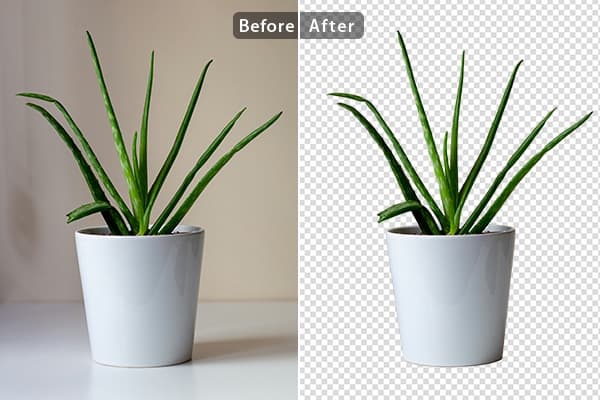
Run rembg-style background removal without installing Python. Compare the online tool, the REST API and self-hosting — with real processing-time trade-offs.
Détourez vos images dans le navigateur : pas de Python, pas de logiciel à installer. Comparaison entre outil en ligne, API REST et rembg en local.
أزل خلفية صورك من المتصفح مباشرة: بدون Python وبدون تثبيت أي برنامج. مقارنة بين الأداة أونلاين وواجهة API والأداة المحلية rembg.