
How to Remove Background From WooCommerce Product Images
A practical guide to cleaning up your WooCommerce product photos—from AI background removal to white and transparent backgrounds—so your WordPress store looks consistent without hours of manual editing.
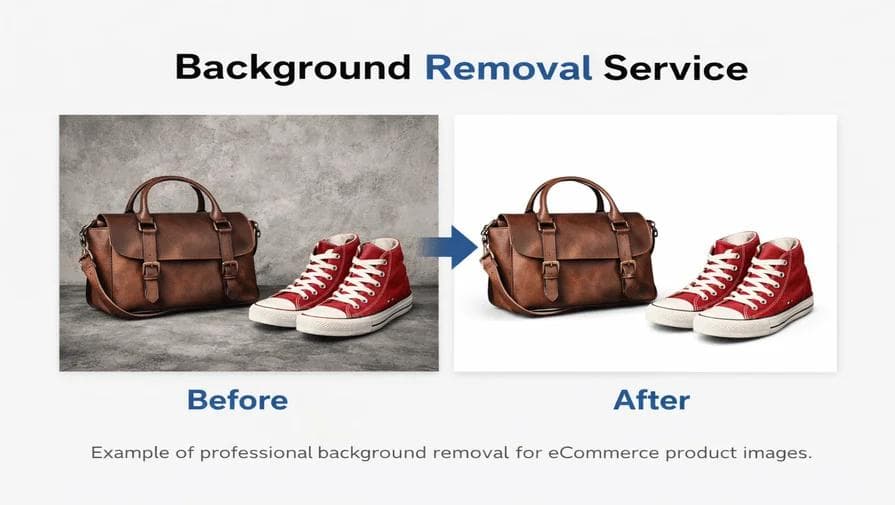
Published on August 31, 2026
Product images are the face of your WooCommerce store. They appear in many places at once—on product pages, shop and catalog pages, category pages, in related products, upsells, cross-sells, product galleries, and even in search results and social media. That means a single low-quality or inconsistent image can be seen across your entire storefront.
When product photos have distracting or inconsistent backgrounds, the catalog can look less professional. Removing the background isolates the product and gives your store a clean, uniform style—whether your images appear on a white page, a themed grid, or a marketing graphic.
You do not need to edit every photo by hand to get there. AI background removal does the heavy lifting automatically, letting you process product images in seconds rather than minutes. This guide walks through why background removal matters for WooCommerce, the best image styles, and how to clean up a full catalog efficiently using RMBG.PRO.
Why Remove Backgrounds From WooCommerce Product Images?
Background removal is about visual and workflow benefits. Here is what it makes possible for a WooCommerce store:
Cleaner Product Presentation
A distracting background pulls attention away from the product. Removing it focuses the customer on what they are buying.
Consistent Catalog Appearance
When every product shares the same background treatment, shop and category grids look uniform and the store reads as more polished.
Easier Image Standardization
A clean cutout makes it simple to apply the same background, sizing, and cropping rules across your entire catalog.
Better Focus on the Product
With the background gone, the product becomes the clear subject, helping buyers compare items quickly.
Clean White or Transparent PNGs
Once the background is removed, adding white or keeping transparency is trivial—giving you flexibility across pages and marketing channels.
Faster Editing Workflow
With AI handling removal, you can prepare product images in seconds each instead of spending minutes per image in editing software.
Image quality and consistency are part of an overall e-commerce strategy. Clean, well-presented product images are a strong foundation, but they are one piece of building a professional store—not a guarantee of results on their own.
What Makes a Good WooCommerce Product Image?
Before worrying about the background, it helps to know what makes a product image work. Across nearly every category, these factors matter:
- Good resolution. WooCommerce officially recommends a minimum of 800×800 px, which renders well for the main product image, catalog image, and thumbnail. Larger images are better for detailed products.
- Sharp product details. The product should be in clear focus so customers can see what they are buying.
- Accurate colors. Colors should look natural and match the physical product.
- Clean edges. Crisp product outlines are easier for AI to separate and look better when isolated.
- Consistent framing and scale. Similar framing and product size across images keeps grids looking tidy.
- Appropriate cropping. Keep the product proportional and centered with a little breathing room.
- Good lighting. Even, diffused light reduces harsh shadows and supports accurate edge detection.
- Consistent background treatment. Apply the same background style across your catalog.
WooCommerce uses three image sizes for different locations: the single product image, catalog images, and product thumbnails—displayed on product pages, shop and category pages, related products, upsells, cross-sells, and in the cart. It does not require a white background on any of them. The right background depends on your brand, theme, and channels.
How to Remove the Background From a WooCommerce Product Image
Here is a step-by-step walkthrough for removing backgrounds from a single product image using RMBG.PRO:
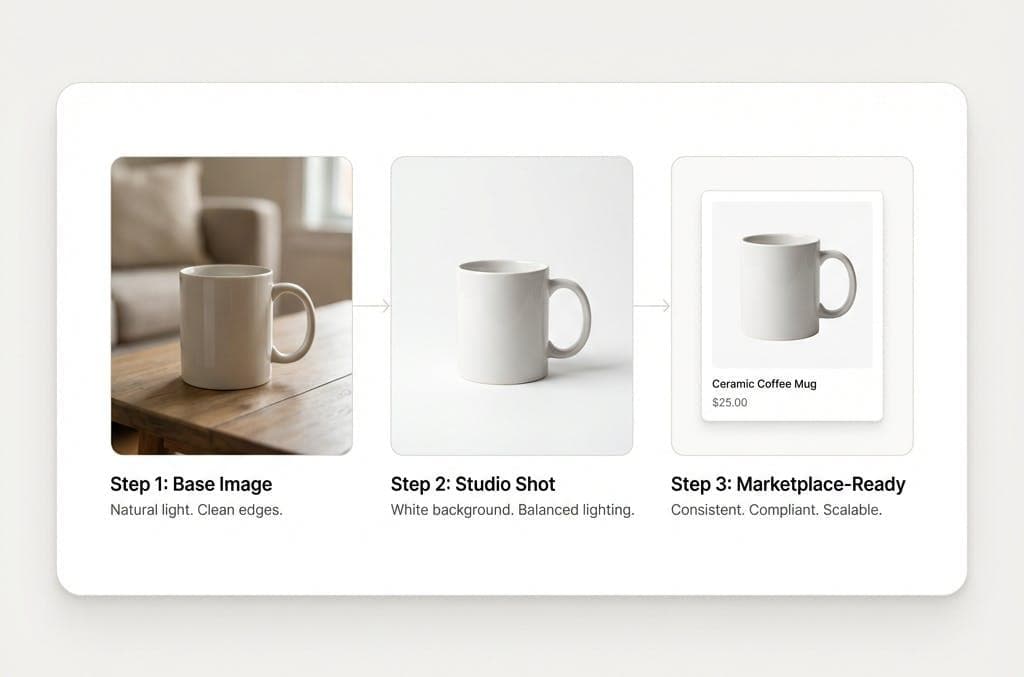
Choose Your Product Photo
Start with the best source photo you have. Look for a product that is clearly visible, well lit, and in focus, with reasonable resolution and good contrast. Avoid heavy blur and make sure the product is not hidden behind other objects.
Upload the Image to RMBG.PRO
Open the background removal tool and drag your product photo onto the canvas, or click to select a file. RMBG.PRO supports common formats including JPG and PNG.
Open Background Removal Tool →Remove the Background With AI
RMBG.PRO automatically detects the product and separates it from the surrounding background. In a few seconds, the AI produces a clean cutout with a transparent background.
Choose the Desired Background
Decide what replaces the background. Keep it transparent for flexibility, or add a solid color. RMBG.PRO supports custom background colors, so WooCommerce merchants can use white or any brand color without leaving the tool.
Review the Result
Zoom in and inspect the product edges, small details, thin objects, transparent materials, shadows, handles, fine details, and cropping. Catching an issue here saves a re-upload later.
Upload the Final Image to WooCommerce
Download the finished image, then add it to your product. In the WordPress dashboard, go to Products > Edit Product and set it under Product image or add it to the Product gallery. For a closer look at managing images in WooCommerce, see the official Adding product images and galleries documentation.
How to Make WooCommerce Product Images Have a White Background
Many e-commerce stores use clean white backgrounds because they create a product-focused presentation, a consistent catalog design, simple product grids, and a minimalist store look. They are also easy to reuse across marketplaces.
The workflow is straightforward:
WooCommerce does not require a white background on product images. Use white when it matches your store’s design; otherwise choose the style that helps your products look their best. For more on this, see our guide to creating white background product photos online.
Transparent vs White Background for WooCommerce
Both transparent and white backgrounds have a place in a WooCommerce store. The table below compares them across common use cases:
| Feature | White Background | Transparent Background |
|---|---|---|
| Product pages | Excellent | Excellent |
| Catalog grids | Excellent | Excellent |
| Minimalist stores | Excellent | Good |
| Graphic design | Good | Excellent |
| Social media | Good | Excellent |
| Custom website backgrounds | Limited | Excellent |
| Overlay designs | Limited | Excellent |
Choose a white background for clean, consistent catalog grids and minimalist product pages. Choose a transparent background when you plan to place products on custom backgrounds or overlay designs, or when your theme uses a colored or patterned background. Transparent PNGs give you that flexibility. For more detail, see our guide on creating transparent backgrounds for brand assets.
How to Remove Backgrounds From WooCommerce Product Images in Bulk
The challenge grows with your catalog. A store with 50 products is one thing, but 100, 500, or thousands of product images is another—and editing each one manually is repetitive and time-consuming.
Bulk processing solves this by handling many images at once with the same settings. Here is how the workflow works:
Organize Your Product Images
Gather the product photos you want to clean up, for example every image in a particular WooCommerce category.
Upload Multiple Images
RMBG.PRO supports uploading multiple files in a single session, so you can start the whole batch at once.
Process Them Automatically
The AI removes the background from each image using the same detection process, keeping results consistent across the batch.
Review the Results
Spot-check the outputs, especially for tricky images like transparent bottles or fine details, before you download.
Download the Processed Images
Export the finished cutouts—transparent or with a background applied.
Replace or Update Product Images in WooCommerce
Upload the processed images to your WordPress media library and assign them to the relevant products, replacing the originals or adding them to galleries.
For a deeper look at catalog-wide editing, see our guide on bulk product image editing for e-commerce and the fastest way to remove image backgrounds for large sets.
How to Keep WooCommerce Product Images Consistent
Consistency makes a product catalog easier to browse. When every image follows the same rules, customers can compare items without being distracted by mismatched visuals. Here is what to standardize:
- Background. Use the same background treatment across related products.
- Aspect ratio. A consistent ratio keeps grids and thumbnails tidy.
- Product scale. Keep products a similar size within the frame.
- Product position. Center products in a consistent orientation.
- Image dimensions. Use consistent dimensions, ideally at or above WooCommerce’s recommended minimum.
- Lighting. Use even, similar lighting so colors and shadows look consistent.
- Cropping. Crop to the same boundaries and leave consistent breathing room.
- Margins. Keep consistent margins around products.
- File format. Use consistent formats, for example transparent PNG cutouts or optimized JPEGs.
Consistent imagery makes your catalog easier to browse, but it is not a promise of increased conversions on its own. It is one part of a professional storefront.
WooCommerce Product Image Size and Quality
Per WooCommerce’s official documentation, a minimum image size of 800×800 px renders well for the single product image, catalog image, and thumbnail. Larger images are even better, especially for products with detail. WooCommerce uses three image sizes—the single product image, catalog images, and product thumbnails—each displayed in different contexts.
The right dimensions also depend on your theme, product image settings, catalog layout, and zoom functionality. WooCommerce’s own guide on fixing blurry product images explains that blur is often caused by images smaller than what your theme renders. For retina (HiDPI) displays, WooCommerce recommends doubling the dimensions your theme renders so images stay sharp.
You can manage product image settings under Appearance > Customize > WooCommerce > Product Images for classic themes, or through the block theme editor, and regenerate thumbnails under WooCommerce > Status > Tools. The WooCommerce ecommerce photography guide covers these ideas in more depth.
How to Remove Background From WooCommerce Images Without Photoshop
You do not need Photoshop to clean up WooCommerce product photos. Here is an honest comparison of the two approaches:
Photoshop
Advantages:
- Advanced manual control
- Precise editing and detailed masking
- Professional retouching options
Disadvantages:
- Steeper learning curve
- More manual work per image
- Time-consuming for large catalogs
AI Background Removal
Advantages:
- Faster, often seconds per image
- Easier, no learning curve
- Fully automated detection
- Suitable for repetitive tasks
- Useful for large product catalogs
AI is not always better than Photoshop. For complex edges, transparent objects, or detailed retouching, manual tools remain valuable. But for standard product photography at scale, AI background removal is often the more practical choice. Many sellers use AI for the bulk of their catalog and reserve Photoshop for hero images that need extra polish. For a creative tool comparison, see our photo editor guide for photographers and e-commerce.
Common Background Removal Problems With Product Images
Even the best AI tools hit a few challenges. Knowing them upfront helps you pick better source images and know when to touch up the result:
White Products on White Backgrounds
Low contrast makes edges hard to detect. If you are photographing a light product, put it against a contrasting backdrop so the AI can find the outline.
Glass and Transparent Products
Bottles, glassware, and transparent packaging are tricky because the background is visible through the product. These often need a manual touch-up after AI removal or a careful source photo.
Fine Product Details
Thin wires, hair, fibers, small accessories, and complex edges challenge edge detection. Zoom in and inspect these areas, and refine or retouch them if needed.
Shadows
Shadows may be part of the product presentation and should not always be removed. Decide per image whether to keep a subtle ground shadow for depth or remove it entirely for a clean look.
Complex Backgrounds
Cluttered backgrounds can make segmentation harder. Cleaner source photos, or photos with a simple backdrop, generally produce cleaner cutouts.
Low-Resolution Images
A low-quality source image tends to produce a poor final result regardless of the tool. Invest in decent source photography to save time on every image.
Tips for Better WooCommerce Product Photography
Background removal works best when the source photo is solid. Here is practical advice, drawing on WooCommerce’s own getting started with ecommerce photography guidance:
- Use consistent lighting. Even, diffused light reduces harsh shadows and makes edge detection easier.
- Keep the camera position consistent. Consistent angles produce a uniform catalog.
- Use a tripod when appropriate. A stable setup keeps framing and focus consistent.
- Keep product framing consistent. The same composition across your catalog looks professional.
- Use high-quality source images. Shoot at the highest resolution your camera allows.
- Avoid unnecessary objects. Declutter the scene to keep the focus on the product.
- Keep products centered. Centered framing translates well to grids and thumbnails.
- Photograph variants using the same setup. Consistency across colorways and sizes matters.
- Keep the same visual style across the catalog. Match background, lighting, and color grading.
- Review images before publishing. Check edges and details at full size before adding them to your store.
Can AI Automatically Remove Backgrounds From WooCommerce Images?
Yes. AI can automatically remove the background from product images, which is exactly why it is so useful for WooCommerce merchants. The typical workflow looks like this:
Tools like RMBG.PRO automate this entire pipeline, reducing the repetitive editing work that used to take hours.
That said, AI should still be reviewed. Spot-check the final result, especially for difficult images with transparent materials, fine details, or complex backgrounds, to make sure edges are clean before publishing.
Why Use RMBG.PRO for WooCommerce Product Images?
RMBG.PRO is built for sellers who need fast, reliable background removal without complex editing software. Here is how its features fit into a WooCommerce merchant’s workflow:
AI-Powered Removal
The AI automatically detects products and removes backgrounds in seconds. No manual masking or selection required.
Custom Background Colors
After removal, add a white, colored, or custom background in the same tool. No need to switch between applications.
Transparent PNG Output
Export clean transparent PNG cutouts that you can place on any theme background or use in design work.
Bulk Processing
Upload multiple product images at once and process them together—ideal for stores with large catalogs.
WordPress Plugin
The RMBG.PRO WordPress plugin lets you process images directly in your media library, including WooCommerce product images. See our guide to removing image backgrounds in bulk with the WordPress plugin.
API Automation
Automate your workflow with the RMBG.PRO API. Integrate background removal into your existing e-commerce pipeline with simple API calls.
Ready to clean up your WooCommerce product images? Remove distracting backgrounds and create professional product images with RMBG.PRO.
Remove Product Background →Frequently Asked Questions
How do I remove the background from a WooCommerce product image?▾
Upload your product photo to an AI background removal tool like RMBG.PRO. The AI automatically detects the product, removes the surrounding background, and lets you export the result as a transparent PNG or with a white or custom color background. You can then upload the final image to your WooCommerce product.
Does WooCommerce have a built-in background remover?▾
No. WooCommerce does not include a built-in background remover in its core features. Product images are managed through the WordPress Media Library, and background removal requires a third-party tool or plugin, such as an AI background removal service or the RMBG.PRO WordPress plugin.
Can I make WooCommerce product images have a white background?▾
Yes. After removing the original background with AI, you can add a solid white background and export the image. Tools like RMBG.PRO support custom background colors, so you can go from almost any background to a clean, consistent white finish in one step.
Can I use transparent PNGs in WooCommerce?▾
Yes. WooCommerce and WordPress support transparent PNG product images, which lets the theme or site background show through. This is useful for logos, product cutouts, and images you want to place on different backgrounds across your site.
What is the best background for WooCommerce product photos?▾
There is no single best background. A clean white background works well for consistent catalog grids and product-focused pages, while a transparent background gives you flexibility for design and marketing. The right choice depends on your brand, product category, theme, and sales channels.
Can AI remove backgrounds from WooCommerce product images?▾
Yes. Modern AI background removal automatically detects products and separates them from complex backgrounds in seconds. It works well for most product categories, though results can vary for transparent objects or images with fine details like hair or mesh, and results should be reviewed before publishing.
Can I remove backgrounds from multiple WooCommerce images?▾
Yes. RMBG.PRO supports batch processing so you can upload multiple product images at once and process them together. The WordPress plugin can also work within your media library to process images in bulk, which is much faster than editing each image individually.
Do I need Photoshop to edit WooCommerce product images?▾
No. While Photoshop offers advanced manual control, AI tools like RMBG.PRO handle background removal and white or transparent background creation without a learning curve. For sellers processing many product images, AI tools are often faster and more practical than manual editing.
What image size should I use for WooCommerce products?▾
WooCommerce officially recommends a minimum of 800 x 800 pixels, which renders well for the single product image, catalog image, and thumbnail. Larger images are even better for products with detail, and the ideal size also depends on your theme, product image settings, and retina display requirements.
How can I make all WooCommerce product images consistent?▾
Standardize the background, aspect ratio, product scale, position, lighting, cropping, and file format across your catalog. Removing backgrounds with the same tool and applying the same settings helps create a uniform look, making your catalog easier to browse.
Clean Up Your WooCommerce Product Images
Remove distracting backgrounds and create professional product images with RMBG.PRO. No Photoshop required.
Remove Product BackgroundSimilar articles
View all
Work with permitted TikTok content using RMBG.PRO. Check public TikTok links, convert videos to MP4 or WebM, extract MP3 or WAV audio, and choose quality presets.
Travaillez avec du contenu TikTok autorisé grâce à RMBG.PRO. Vérifiez les liens publics, convertissez en MP4 ou WebM, extrayez l’audio MP3 ou WAV et choisissez la qualité.
Trabaja con contenido TikTok permitido en RMBG.PRO. Revisa enlaces públicos, convierte a MP4 o WebM, extrae audio MP3 o WAV y elige la calidad.