
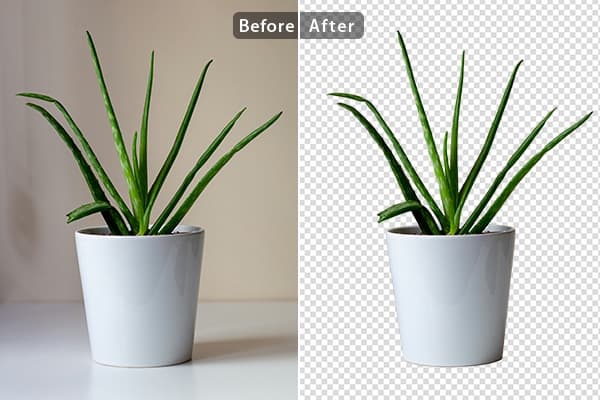
How to Make an Image Background Transparent
A practical, beginner-friendly guide to turning any image into a clean transparent PNG or WebP — with AI, online, or in Photoshop. Covers logos, e-commerce product photos, common mistakes, and a step-by-step RMBG.PRO tutorial.
Introduction
A transparent background lets the subject of an image appear without the original pixels behind it. That single property unlocks a surprising amount of value across almost every type of digital content. Designers place logos on dark and light headers without white boxes. E-commerce sellers use the same product photo across Amazon, Shopify, social ads, and print flyers. Marketers drop product cutouts onto seasonal marketing banners. Bloggers overlay screenshots on diagrams without ugly rectangles. App and game creators build UI assets that flow over any theme.
For most of the web's history, making a background transparent meant opening professional design software, tracing the subject by hand with a pen tool, and carefully polishing edges for minutes or hours. Today, a free AI background remover can do the same job in a few seconds directly in your browser. This guide covers the whole picture: what transparency really means, which formats support it, how to do it online with RMBG.PRO, how to do it manually in Photoshop, how to handle the tricky cases (white backgrounds, logos, hair, glass, shadows), and how to verify your result is truly transparent before publishing.
By the end, you will know how to make an image background transparent reliably — whether you are a beginner touching an image editor for the first time, or a marketing team processing 500 product photos a week.
What Is a Transparent Background?
Every image file is made of pixels. A pixel, at minimum, has three colour values: red, green, and blue. A transparent image carries a fourth value per pixel: an alpha number from 0 (fully invisible) to 255 (fully opaque). Those intermediate alpha values are what create soft edges — the feathering around curly hair, the glow of a transparent glass bottle, or the fade-out of a drop shadow.
Visually:
- White background: Product pixels + a sea of solid white pixels. Place it over a dark website, and a white rectangle shows up around the product.
- Coloured background: Same problem, just with a different colour of unwanted rectangle.
- Transparent background: Product pixels +no pixels in the empty area. Whatever canvas you place the file on shows through instead.
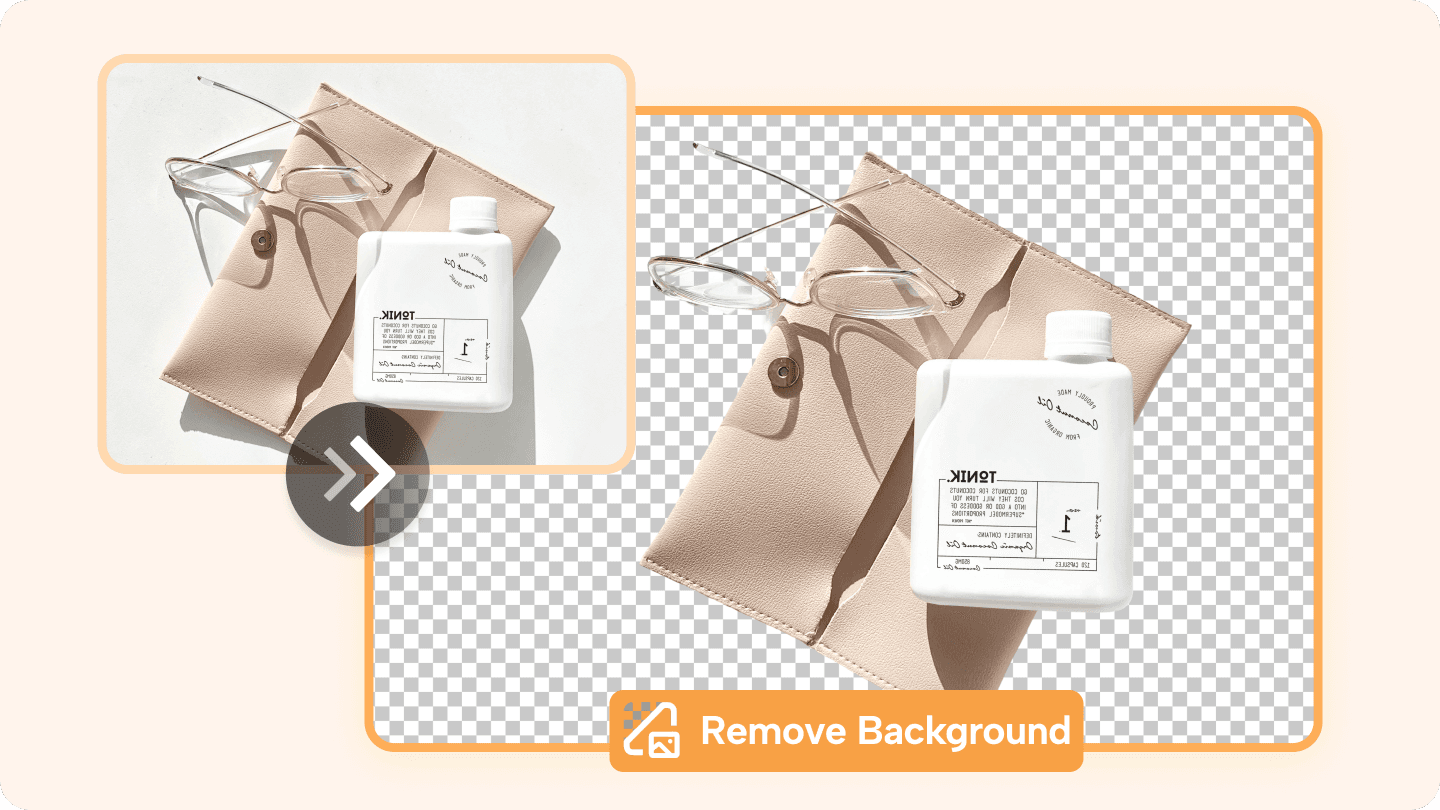
An isolated product cutout on a transparent canvas. The empty regions let whatever is behind the image show through.
Image editors such as Photoshop, Photopea, and GIMP represent transparency visually with a grey-and-white checkerboard pattern. Wherever you see the checkerboard, the pixels at that location carry an alpha of 0. That visual shorthand matters because a lot of PNGs still look "transparent on white" in plain viewers; only the checkerboard pattern in an editor tells you the transparency truly exists.
Why Would You Want a Transparent Background?
Transparency is one of those seemingly small features that silently enables entire workflows. Here are the most common use cases.
- Product images. Place a product on a black Friday banner, a plain white product-grid cell, an Instagram carousel, and a printed catalogue without re-photographing it.
- Logos and icons. A logo file with a baked-in white or black background immediately looks unprofessional on any header that does not match that background colour.
- Website graphics. Hero cutouts, avatar frames, decorative stickers, and CTAs that float over coloured or photographic backgrounds.
- Social media designs. Sticker-style overlays on TikTok shorts, YouTube thumbnails, Pinterest pins, and Reels templates.
- Presentations and pitch decks. Insert people, products, and icons over gradient slides without boxes.
- Print and advertising. Flexible layouts for business cards, posters, flyers, and ad creatives.
- Custom composites. Collages, mood boards, video overlays, Twitch/streaming graphics, and AR assets.
In short: a transparent file is a reusable asset. A file with a fixed background is a one-off. That difference is why spending 30 seconds to create the transparent version is almost always worth it.
Which Image Formats Support Transparency?
Not every file format supports the alpha channel. If you export a perfectly cut out image to the wrong format, you lose the transparency instantly — usually with white pixels filling every empty region.
| Format | Transparency | Best use |
|---|---|---|
| PNG | Yes | Graphics, logos, icons, product cutouts, screenshots — anything you want universally supported. |
| WebP | Yes | Modern websites. Better compression than PNG for the same visual quality. |
| AVIF | Yes | Cutting-edge web images. Even smaller files, with tradeoffs for very old browsers. |
| JPEG / JPG | No | Photographs with no transparency needs. |
| GIF | Limited (1-bit) | Simple graphics or short-loop animations; avoid it for sharp professional cutouts. |
The practical rule of thumb: for universal compatibility today, export as PNG. For modern websites or when you want the smallest file size, export as WebP. If the destination is an email client, a print vendor, or a marketplace with strict file rules, stick with PNG — it has the broadest support. Never use JPG if you want transparency. Converting a PNG to JPG will always flatten the alpha channel.
How to Make an Image Background Transparent Online
The quickest way for most people is a browser-based AI background remover online. You do not install anything, the AI does the edge detection, and you get a transparent PNG back in seconds. Here is the full workflow using RMBG.PRO as the example tool.
Step 1. Choose a good source image
Even the best AI benefits from a good input. Pick a photo where the subject is in focus, evenly lit, and clearly separated from the background. Strong contrast between subject and surroundings (for example a black product on a white backdrop) produces the cleanest first pass. Avoid heavily compressed JPEG artefacts if you can; they introduce noise that the model has to disambiguate.
Step 2. Upload the image to RMBG.PRO
Open the free background removal tool. Drag the image into the upload area, or click to browse your device. Accepted formats include PNG, JPG, JPEG, and WebP. For WebP specifically, you can also use the dedicated Remove Background from WebP tool to make a WebP background transparent while preserving the format end-to-end.
Step 3. Remove the background with AI
After upload, RMBG.PRO's AI model analyses every pixel, identifies the main subject, and generates an alpha mask for you. The result is shown in real time over the checkerboard preview so you can immediately see which parts are now transparent.
Step 4. Keep or change the background output
By default, cut out subjects are rendered over a transparent canvas. That is exactly the output you want for a transparent file. If you later need a solid colour backdrop (white, black, or a brand shade), you can swap it in without reprocessing the image. This is useful when a marketplace or social format requires a specific fill colour and you also want the transparent master on hand. Read our companion guide on replacing an image background with colour to compare the workflows.
Step 5. Review the result in detail
Zoom in and pay attention to:
- Edges. Jagged halos around sharp shapes often mean a background colour mismatch.
- Hair, fur, and feathers. Fine flyaway strands are the hardest part of any cutout.
- Transparent or reflective objects. Glass, plastic bottles, jewellery, acrylic packaging.
- Shadows. Decide whether you want the original soft shadow kept under a product or not — both are valid depending on use.
- Small or thin elements. Earring hooks, bag straps, pen tips, product handles.
Step 6. Download the transparent image
When you are happy, hit Download. RMBG.PRO outputs the file in a transparency-capable format so the alpha channel survives. Open the downloaded file once in an editor (or place it over a non-white canvas) before publishing — this is the quickest way to catch any issues that a plain-white preview in your OS hides.
Make Your Image Transparent with RMBG.PRO
Upload any photo, logo, or product shot. AI removes the background in seconds and hands you a clean transparent PNG or WebP ready to place on any canvas.
Free • No signup • AI-powered • Sub-second • PNG / WebP
How to Make a White Background Transparent
Removing a white backdrop is one of the most common searches in this space — and for good reason. A huge share of product photos, logo exports, and legacy graphics end up with white backgrounds. Conceptually:
Original = product + white pixels. After = product + transparent pixels.
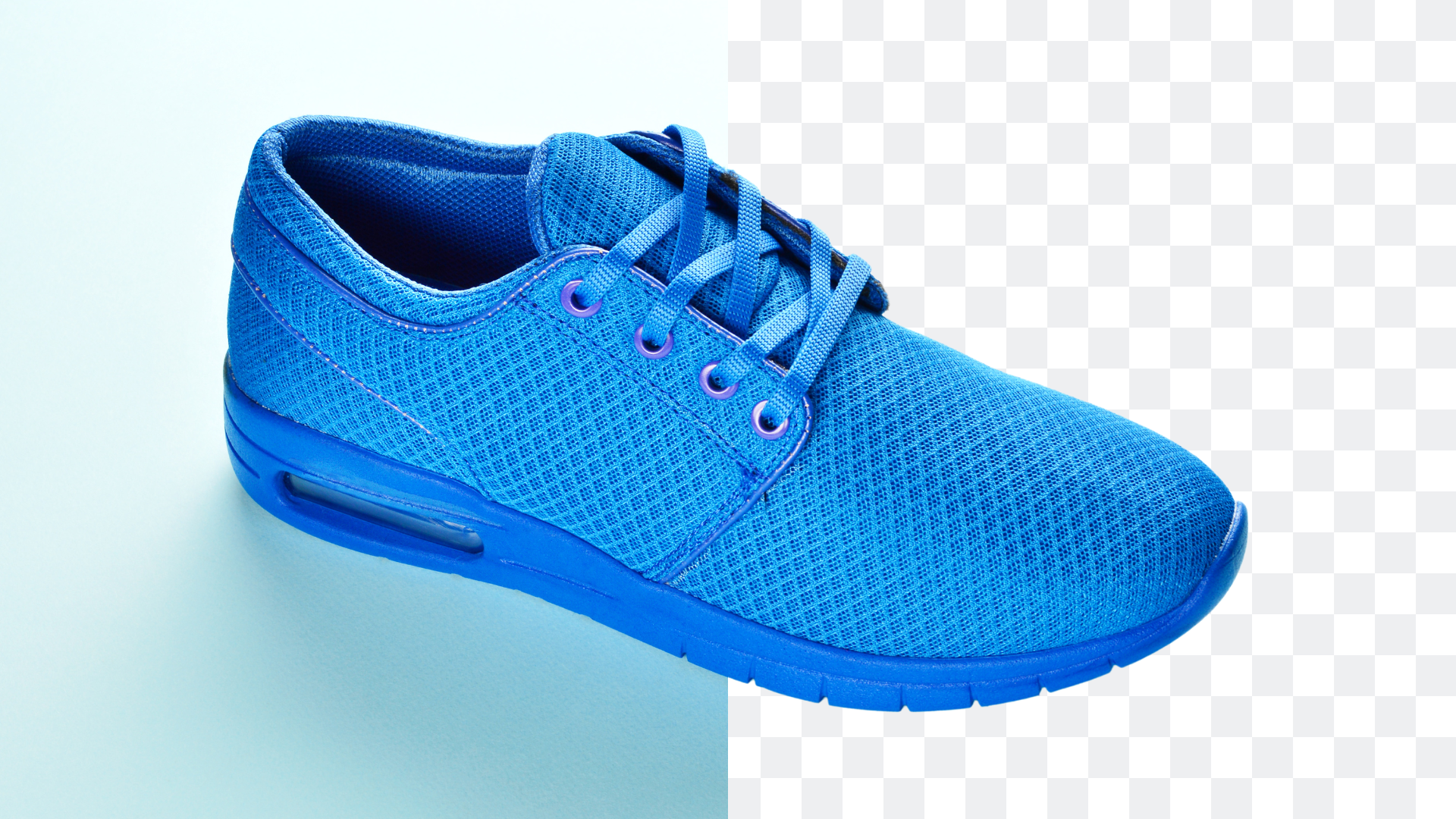
Removing a plain white background from a product photo is one of the easiest jobs for an AI background remover.
Use cases include:
- Product photos shot for marketplaces that require a white listing image.
- Logos exported “for print” from an old design system with a white background baked in.
- Scanned signatures, hand-drawn sketches, and retro graphics that were digitised over white paper.
- Marketing headers built with white-stroked text over a solid canvas.
- Legacy PNG thumbnails that were flattened to white at some point.
Pure white is easy to separate because contrast between subject and background is maximised. The real nuance lives in the “almost-white” pixels — highlights on the subject, reflections, or slightly off-white backdrops that a naive colour-threshold approach would eat into. AI handles these shades better than manual magic-wand selection, which is why online AI tools are the default choice for this specific job.
How to Make a Logo Background Transparent
Transparent logos give you one master asset for every context:
- Website headers and footers (light mode and dark mode).
- Business cards and printed letterheads.
- Social media profile pictures and cover photos.
- Presentation templates and pitch decks.
- Video overlays, end cards, and YouTube branding.
- Packaging, stickers, and promotional swag.
- Partner logos in press pages and pitch decks.
The fastest way to convert an existing logo file is to run it through RMBG.PRO's background removal tool, then review the counters and enclosed spaces. Counters are the enclosed shapes inside letters like A, B, D, e, O, P, Q, R, a, d, g, o, p, q, and also the negative spaces in monograms and icon marks. They should stay transparent (or filled with the intended logo colour, depending on the design), not be cut through by an aggressive mask. For a deep dive into logo-specific extraction, see the companion article on making professional brand assets with a transparent background maker.
A quick note on expectations: AI can extract a raster logo from its background and output a clean transparent PNG. If your original logo is a low-resolution PNG with a white background and you need a razor-sharp SVG at any size, the ideal long-term fix is to also request the vector source from the designer who made it. Use the AI export in the meantime and treat it as a perfectly valid short-term master asset.
How to Make Product Images Transparent
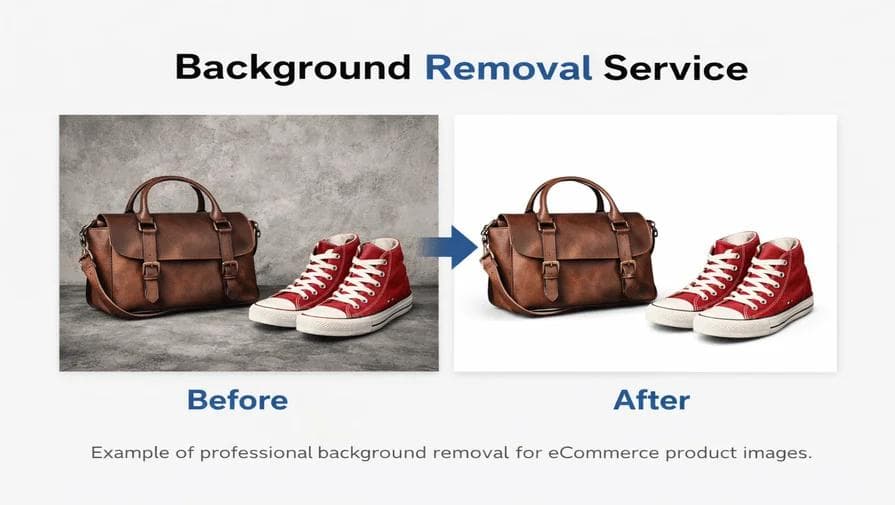
E-commerce is where transparent product files earn their keep. The typical pipeline is:
- Shoot a product photo against a clean backdrop (often white).
- Run AI background removal to isolate the product.
- Review edges, reflective surfaces, and any packaging.
- Export a transparent PNG or WebP.
Benefits of this workflow:
- Reuse the same cutout across white product-grid listings and dark Black Friday banners.
- Consistent catalog appearance even when photos came from different studios.
- Compose marketing visuals faster — no more re-cutting every season.
- Swap backgrounds globally without re-touching a single photo.
One important caveat: some platforms have their own exact image specs. Amazon, Shopify, eBay, print catalogues, and ad networks each require specific sizes, compression, and sometimes even a solid white background instead of transparency. Always check the destination rules before the final upload. Keep the transparent PNG as your source of truth and derive platform-specific exports from it — never the other way around.
For a full walkthrough tailored to e-commerce, see the guide on bulk product image editing for e-commerce, and the Shopify / WooCommerce / Amazon product-background tutorials in the blog.
How to Make an Image Background Transparent in Photoshop
If you already own Photoshop and want full manual control, the process is more hands-on than an AI tool but very precise.
- Open the image. File → Open. If the layer is called “Background” and has a lock icon, double-click the layer to convert it into a regular unlocked layer.
- Select the subject or the background. For a modern version of Photoshop, Select → Subject runs Adobe's own AI and gives you a starting selection. For precise manual control you can use the Pen tool, the Object Selection tool, the Quick Selection tool, or the Magnetic Lasso.
- Remove the background. Two common choices:
- Non-destructive (recommended): With your selection active, click the “Add layer mask” button at the bottom of the Layers panel. This keeps all original pixels intact; the mask simply hides the background.
- Destructive: Invert the selection to target the background and press Delete — or just delete the background layer if you selected the subject first.
- Refine the mask. Open Select → Select and Mask. Use the Refine Edge brush on hair or fur, adjust Feather and Contrast, and shift the edge if you see a halo. This step is where the 1% of extra quality comes from.
- Hide the original background. Turn off any leftover background layers so the checkerboard pattern becomes visible behind the subject.
- Export as PNG. File → Export → Export As. Choose
PNG(never JPG), make sure Transparency is enabled, and confirm.
Photoshop is the better choice when you need surgical manual control: ultra-detailed compositing, complex masking on fine jewellery, professional retouching alongside the cutout, and agency-grade production files. For 90% of the tasks in a small business, social, or e-commerce workflow, an online AI tool is the faster path to an acceptable result.
For a comparison of multiple methods and speeds, see the article on the fastest way to remove an image background.
AI Background Removal vs Manual Background Removal

Each approach has strengths. The best teams use both depending on the image.
| Feature | AI background removal | Manual editing |
|---|---|---|
| Speed | Fast — usually 1 to 5 seconds per image. | Slower — minutes to an hour per image. |
| Ease of use | Easy. Upload and download. | More difficult. Requires design skills. |
| Bulk processing | Excellent — suited for large catalogues. | Time-consuming. Manual per-image work. |
| Manual control | Limited — depends on tool features. | Excellent — pixel-level decisions. |
| Learning curve | Low. | Moderate to high. |
| Complex editing | Depends on the tool. | Excellent. Unlimited creative retouching. |
| Best for | Repetitive background removal. | Detailed one-off edits and compositing. |
AI and manual editing are complements, not competitors. The practical production workflow for demanding images is: run AI first to get a 90% solution, then hand-touch only the remaining pixels in Photoshop. This hybrid approach produces the best combination of speed and quality.
How to Make Multiple Images Transparent

Once you scale past 10 images, per-image manual editing stops being practical. Think about the scenarios:
- 50 new SKUs for a fashion brand relaunch.
- 100 product images for a marketplace shop migration.
- 500 items for a dropshipping catalogue refresh.
- Thousands of SKUs in a legacy store back-catalogue.
The general workflow for bulk transparency is:
- Collect images in one folder and verify a consistent naming convention.
- Upload or queue them in a batch-capable background removal system.
- Process all backgrounds with the same model for consistent results.
- Export transparent PNG/WebP masters.
- Visually spot-check the trickiest images (glass, hair, tiny parts, jewellery).
RMBG.PRO offers a WordPress bulk background removal plugin for content teams working on WooCommerce and a background removal API for engineering-driven pipelines and large product catalogues. Use the workflow that matches your organisation rather than forcing 500 drag-and-drops through a browser tab.
Common Problems With Transparent Background Images
The file says it is transparent, but it still looks wrong. What is going on?
White halos
A halo is a thin line of leftover original background colour around the subject's edge. It happens when the cutout mask stops slightly inside the subject but the edge pixels are still blended with the old background. The most common causes are JPG compression artefacts or a slightly-too-conservative AI mask. Fixes: reprocess the image with a slightly wider edge detection, or (if editing manually) contract the selection by 1 pixel and feather the mask by 0.5 pixel.
Rough edges
Rough, pixelated edges come from either a low-resolution source, a poor-quality upscaling step, or a hard-threshold mask with no anti-aliasing. For AI-generated cutouts the fix is almost always to use a higher-resolution source image.
Hair and fur
Individual strands are the hardest category for any background removal system because they are both fine and semi-transparent against the backdrop. Expect to touch up curly hair or long fur manually even after AI has done most of the work.
Transparent objects
Glass bottles, crystal, acrylic packaging, and liquids with visible refraction carry background colours through the subject itself. A 100% clean extraction is not always possible; a good AI tool usually preserves the reflection pattern while dropping the non-subject pixels behind it. Review these shots carefully because what looks correct on a light background may look wrong on a dark one.
Shadows
Decide whether the shadow is part of the product presentation or part of the background. E-commerce product grids often keep a soft contact shadow for realism; graphic designers usually want the shadow removed so they can place the subject over a new scene. Neither choice is wrong — it depends on the use case. Make the decision once per batch and keep it consistent across your catalogue.
Missing details
Thin straps, earring hooks, pen nibs, transparent wings on a product badge — small features that disappear entirely in the mask. Retouch them in manually on a case-by-case basis, or reshoot with more contrast if the image is still flexible.
The overarching principle here is simple: always review the final transparent file against at least two different backgrounds before publishing. This habit catches every one of the issues above.
How to Check if an Image Really Has a Transparent Background
A surprising number of “transparent PNGs” turn out to be regular images with a white background saved under the PNG extension. Use any of these four verification methods before you trust a file.
- Checkerboard preview. Open the file in an editor like Photoshop, Photopea, GIMP, or an online viewer that explicitly supports transparency. Seeing the grey/white checkerboard behind the subject means the alpha channel is real.
- Overlay test. Place the file over a brightly coloured background (red, green, or a photo) in a document, presentation, or design canvas. If the background shows through cleanly, the file is transparent; if you still see a rectangle, the alpha channel is missing.
- Verify the format. JPG cannot have transparency. PNG, WebP, AVIF, and GIF can. If your file ends with
.jpgor.jpeg, assume it is not transparent until proven otherwise. - Check channels. In Photoshop or GIMP, open the Channels palette and confirm there is a fourth alpha channel (or that the layer transparency is enabled on a non-background layer) with values between 0 and 255.
A white-looking preview in your operating system viewer doesnot mean the background is solid white. Likewise, a file with a PNG extension is not automatically transparent. The only reliable tests are the four methods above.
Transparent Background vs White Background
Is it better to export transparent or white? It depends on where the image will be used.
| Use case | Transparent | White |
|---|---|---|
| Logos | Excellent | Limited — only works on white headers. |
| Product catalogues | Excellent | Excellent |
| Website overlays | Excellent | Limited — white rectangle shows up. |
| Social media designs | Excellent | Good. |
| Marketplace images | Depends on platform rules. | Often required. |
| Custom graphic design | Excellent | Limited — inflexible. |
| Simple product listings | Good. | Excellent |
The universal, future-proof workflow is: keep one transparent master asset, then derive white/black/custom-colour JPGs or PNGs from it whenever a specific destination calls for them. This gives you the flexibility of transparency without sacrificing the convenience of a white-background derivative for marketplaces that require it.
Tips for Getting Better Transparent Images
- Use the best source image you have. A 200-pixel WhatsApp preview will never produce a crisp large cutout.
- Use even, diffused lighting. Harsh shadows on the backdrop force the AI to choose between shadow and subject. Soft studio-style lighting wins.
- Avoid excessive blur or heavy post-processing filters.They destroy the edge detail that segmentation models rely on.
- Give the subject some breathing room. Crop a little distance around the product rather than cutting in tight to the edges.
- Keep enough contrast between subject and backdrop.The hardest input for any background remover is a cream-coloured product on a white wall. Add a contrasting sheet behind if you can.
- Avoid overlapping objects. If a product sits partially behind another object in the same shot, you have a manual masking job no matter how good the AI is.
- Review fine edges and transparent parts.Always check the tough cases.
- Keep the original image as a backup. Never overwrite your source photo with the transparent export.
- Confirm the final file format. Export PNG or WebP — never JPG.

One transparent master image, unlimited background choices. Keep the high-quality original on file and derive every other version from it.
Why Use RMBG.PRO to Create Transparent Images?
RMBG.PRO is built around the core workflow this guide describes: upload a photo, let AI detect the subject, download a clean transparent file. The specific features that make it a good fit for this task are the ones that exist today in the codebase:
- AI background removal. One-click detection of the main subject on upload with transparent PNG output.
- Transparent output plus background replacement.Keep the transparency or swap in a solid colour background when you need a marketplace-friendly version.
- Multiple input formats. Accepts PNG, JPG, JPEG, and WebP files directly in the browser.
- WebP-specific tool. A dedicated Remove Background from WebP flow for sites that want modern compressed files end-to-end.
- Bulk processing. WordPress plugin for teams managing WooCommerce media libraries and an API for developers wiring custom pipelines.
- Background color replacement. Export to a coloured background (white, black, or brand) from the same processed image, without re-running the AI.
- Completely browser-first. You do not install desktop software or plugins just for a quick one-off edit.
In practice the workflow is short: get the image, drop it into /remove-background, review it, keep transparency or swap in a background colour, and download the result. The companion guide RMBG.PRO — leading background remover covers the overall platform features in more depth, and Remove.bg vs RMBG.PRO walks through how the two tools compare for the same job.
Frequently Asked Questions
How do I make an image background transparent?
The fastest way today is to upload the image to a free AI background remover such as RMBG.PRO, review the transparent preview, then export as PNG or WebP. If you need full manual control, open the image in Photoshop, convert the background layer, add a mask with Select Subject or the Pen tool, refine edges, and export as PNG.
How do I make a white background transparent?
Run the image through an AI background remover. Because pure white is a high-contrast backdrop, most tools separate it cleanly on the first pass. Then verify the result over a coloured background; any leftover edge halo is easier to see that way.
What format should I use for a transparent image?
Use PNG for universal compatibility. Use WebP for modern websites when you want a smaller file. Use AVIF only if you know the destination browser support it. Never use JPG — it cannot carry an alpha channel.
Can JPG images have transparent backgrounds?
No. The JPEG standard encodes only colour (no alpha). Any file with a .jpg or .jpeg extension will lose its transparent areas; the background will be flattened, usually to white.
Can AI automatically remove an image background?
Yes. Modern AI background removers use computer-vision models trained on millions of labelled pairs. They detect the subject, create an alpha mask, and output a transparent cutout — usually in under 5 seconds, with no tracing or manual drawing required.
How do I make a logo background transparent?
Upload the logo file to an AI background remover, download the PNG, then specifically check the letter counters (enclosed shapes like the inside of an O or B) and the thin strokes in wordmarks. Keep the result as a transparent master logo for all channels.
How do I make a product image transparent?
Start with a clean, well-lit source photo. Run the image through background removal, review edges and any reflective or transparent parts of the product, then export the transparent PNG. Keep this file as your master and generate white-background JPGs from it for marketplaces that require them.
Can I make multiple images transparent at once?
Yes. RMBG.PRO offers bulk background removal through a WordPress plugin for WooCommerce teams and through an API for developer-led pipelines. For a handful of files, running them through the web tool one by one is also fast.
How can I tell if an image is really transparent?
Open it in an editor that shows a checkerboard preview, drop it over a coloured background, check the file format (PNG/WebP/AVIF, not JPG), and — in a professional tool — inspect the channels panel for a working alpha channel.
Why does my "transparent PNG" have a white background?
Two common causes. The file may have been accidentally exported to JPG despite having a .png name, or the preview you are using renders transparency as white by default. Verify the file with one of the four methods in the transparency-check section.
Can I make a background transparent without Photoshop?
Absolutely. An online AI background remover like RMBG.PRO runs entirely in the browser. Upload, review, download. No installation, no license, no design degree required.
Is PNG better than JPG for transparent images?
For transparency, yes — JPG simply cannot do it. PNG is also lossless, which preserves sharp edges around logos and product cutouts. Use WebP instead of PNG when you need smaller file sizes on modern websites and apps.
Conclusion
Transparent backgrounds are the quiet backbone of modern digital design. A single transparent PNG lets you reuse a logo, a product, a headshot, or a screenshot across every website, marketplace, and marketing channel without editing out boxes every time. PNG, WebP, and AVIF all carry alpha channels — with PNG being the safe universal choice today and WebP excelling for modern web performance.
For most people, AI tools are now the default way to make an image background transparent. They are fast, beginner-friendly, and get you a usable transparent file in seconds. Manual editing still has a place — for hair, glass, jewellery, or any shot where you need pixel-perfect control. The smartest workflows combine both: AI for the first 90% pass, manual retouch for the last 10% on only the trickiest frames.
Always review the final image over at least two backgrounds before publishing. Keep the original source on file. Export to a transparency-capable format. And above all: match the output to the destination. White-background JPGs are still the right choice for some marketplaces. Transparent PNGs are the right choice for everything else you want to reuse.
If you want the short version, it is this: open RMBG.PRO, drop the image in, and download the transparent result. You will have a reusable transparent PNG on hand before your coffee gets cold.
Make Your Image Background Transparent
Remove the background from any image with RMBG.PRO and download a clean, reusable transparent result for your website, shop, socials, and print materials.
Free • No signup • AI-powered • Sub-second • PNG / WebP • Edge-preserving